If you’re looking for blog ghostwriting services, it’s common to ask this question. Especially if it will be your first rodeo, it’s understandable to want to get the details straight.
So, should you really give them credit?
In this post, we’ll find out the actual answer. This way, you’ll know what to do once you work with a ghostwriter.
No, they don’t. As their title points out, they’re “ghosts”. They’re not supposed to claim that they’re the ones who whipped up online content for the person they represent.
As their client, it’s not your obligation to give them credit. Because the deal is you pay money for their services. And as far as the same deal goes, you’re off the hook once you hand over what is due — and is rightfully theirs.
Now for some real talk. If they’re not getting credit for their work, it’s only fair to wonder what’s in “it” for them.
The answer? Well, one is the huge paycheck waiting for them!
A ghostwriter in New York, for instance, can enjoy an annual salary of about $45,000.
Remember, ghostwriters are usually skilled writers. For other people, they can write a book, get them featured in magazine articles, and more. They can mirror their clients’ writing style, take charge of these people’s personas, and more.
For this reason, they make their clients’ lives a lot easier. And also for the same reason, they’re usually highly compensated.
Beyond the high pay, here are the other reasons a ghostwriter works this way:
High demand and steady work – The need to create written content will always be there. So, it’s no surprise that the need for ghostwritten works is high.
Variety of work – Ghostwriters explore different topics
Thirst to be better – Writing is an ever-evolving skill. And it gives these ghostwriters an opportunity to always do well.
Should I use a ghostwriter?
Ghostwriters don’t really leave empty-handed.
So, focus on what they can do for you. Because they work anonymously, you get to reap all the benefits of their work.
Ready to use a ghostwriter now?
Reach out to them. However, before anything else, think about these things, first:
Length of the project
Will the ghostwriter be working on a short-term project? Or is it a project that will run for months or even years?
Either way, using a ghostwriter is an excellent idea. They will speed things up and help you meet your deadline.
A perk of offering short-term writing projects to ghostwriters? You usually won’t need to invest resources other than the ones for a quick project. Give them instructions and inform them of your expectations, then let them work. If they do a brilliant job, that’s awesome.
And if they performed terribly, a simple course to take is to carry on with your business. Next time, just hire someone better.
If you want to work with a ghostwriter for the long haul, you’re walking in an unfamiliar territory. You may also need to invest in them and help them write well for you for as long as it takes.
Here are some tips that you can share with a ghostwriter to help them handle a long-term project:
Schedule and start – Jot down what you need to do, create a plan, then start the work.
Stick to a to-do list – Commit to your plan. Using productivity tools like the Pomodoro Technique can help.
Rest adequately – Get eight hours of sleep if you must. Willpower is an exhaustible resource.
Ideal ghostwriter
The first person who offers you their ghostwriting services may tell you that hiring them will save you time. It makes sense for them to bring that up because it means you don’t have to spend more time searching for ghostwriters.
Based on that perspective alone, you could nod your head in agreement.. However, if you factor in a ghostwriter’s qualifications, you will start walking in the opposite direction. So only use a ghostwriter if you’ve found someone qualified.
Here are some questions you need to ask before using a ghostwriter for hire:
Are their organizational skills good enough? If you have plenty of work mapped out for them, they should be able to organize all of them. Then allow them to prioritize the more urgent tasks as they deliver high-quality work for you.
Are they resourceful? They should always know what to do with what you give them. Rather than keep bugging you with concerns, they should know how to handle things independently, too.
Are they out-of-the-box thinkers? They should be creative and propose brilliant ideas.
A ghostwriting collaboration differs for every ghostwriter and their client. And it could be easier if you set rules on how to work prior to starting.
Each ghostwriter works uniquely, and so does each client.
To help you work with a ghostwriter effectively, here are some tips you should note:
Don’t micromanage – No second-guessing or pointing out errors before they polish a project. Remain in the background and let a ghostwriter work how they want to.
Communicate clearly – Don’t use analogies, for instance. Be direct when delivering your message and ask them if they completely understand you.
Provide guidance – Offer suggestions if they need them. For example, you can provide research materials.
How much does ghostwriting cost?
As mentioned, ghostwriters can make a lot of money for their writing skills. So if you can provide them with fair compensation, hire one.
Know little you need to shell out for their services? Then, take the factors below into consideration:
Skills
The more skills a ghostwriter has, the higher you should think of paying them. If they can do the work that you originally thought of hiring someone else to do, then let that payment go to the ghostwriter instead.
For example, they can help you manage your social media accounts. They can keep these accounts updated, engage with your followers, and more.
What other skills do ghostwriters need to have for higher pay, you ask? Here’s a few of them:
SEO knowledge – Can they create and edit meta and title tags, for example? If they know their way around search engine optimization, they’re worth a lot.
Editing skills – Proofreading and editing can be time-consuming. If you don’t need to hire an editor anymore, take it as a cue that you should compensate higher.
Familiarity with graphic design – Can they take care of all visual-related elements for you?
Experience and credibility
Hiring a credible and experienced ghostwriter doesn’t come cheap. That’s because it takes time – and effort – to build experience and credibility.
You can’t go from being an undecorated ghostwriter to an experienced and credible ghostwriter overnight, can you?
Here are signs that tell you a ghostwriter is credible and has relevant experience.
Knowledge about a subject – If possible, they’re willing to show you that they’re experts. If they’re niche-specific ghostwriters, they should be willing to talk extensively about a relevant subject.
Social proof – It’s easy for anyone to claim that they’re experienced and credible. However, is there anyone else that can honestly support their claim?
Professionalism – Working with an inexperienced ghostwriter can open the door to unprofessionalism. So hire a ghostwriter who’s reliable, hardworking, and respectful.
Your project’s word count
Let’s be realistic.
Ghostwriters usually charge clients based on the number of words they should write. They can give you a quote for a flat fee. However, this fee would still depend on the number of words that they need to write.
So if you want them to write a relatively lengthy article, be ready to pay them a higher amount. For a 5,000-word article, for example, they will charge you something like this:
5,000-word article = 5,000 x $0.15
If their per-word rate is $0.15, then it’s fair to compensate them $750 for their work.
Related: how much does it typically cost to hire a ghostwriter?
Still asking the question, “Do ghostwriters get credits?”?
And still worried about who gets the credit for their written work once you bring a ghostwriter into the picture? Well, don’t because as the discussion above goes, it’s you -you get all the credit.
And don’t feel bad about the whole setup, either. Ghostwriters are “ghosts”, remember? If they wrote an excellent piece on your behalf, the praise goes to you!
So go ahead and hire a ghostwriter to do magic for your online business.
If you’re wondering how much you need to pay me, that’s what we’ll discuss here.
In this article, let’s explore all the costs involved in hiring a ghostwriter. This way, you can justify the cost of hiring ghostwriters and start hiring one right away.
Hiring a ghostwriter comes with a price. And you’ll realize this price is reasonable once you consider the resources that ghostwriters need to invest to complete a project.
Plus, not all ghostwriters charge the same price for their services. The sooner you come to terms with this, the faster you’ll get the answer you need.
For instance, ghostwriters that work through New York charge about $200,000. However, it is entirely possible to bump into a ghostwriter that might charge less-way less-for the same work.
You can get articles ghostwritten for you for $5, for example.
This is because each ghostwriter is unique. The price for their services also depends on the quality of the work they’re willing to put in.
Here are the different categories of ghostwriters:
Cheap writers – They have little experience and still need your help in writing. You can find them on Upwork, Fiverr, and other freelancing websites.
Mid-range ghostwriting professionals – They’re great writers — excellent even. Gaining enjoyment and experience from a project is what they’re all about.
High-end superstar writers – They’re well-established writers. Politicians, actors, musicians, and TV personalities are their clients.
The good news is, they can — at least, I can. However, for that to happen, you need to do your end of the bargain.
For one, a ghostwriter might charge less if you reduce your word count. Considering the fact that they charge you on a per-word rate, you can lower your original proposal’s word count.
Say, you can reduce a blog post containing 1,000 words to a 500-word post. So if you want the ghostwriter to reduce their fees by 50%, this is one workaround.
Here are more tips on how to help convince ghostwriters to lower their fees:
Offer a flexible deadline – You can give them a week’s worth of allowance, for example. Ghostwriters have other priorities other than your project so you need to show them you respect their time
Communicate well – Chat, call, or e-mail them. The easier they find you to work with, the higher the chances of them lowering the price.
Pitch a relatable topic – Ask them to incorporate something meaningful and relatable for your project. It could be about a personal passion.
Another way to get around this? Approach them and ask them what you can do for them to lower their price.
Ghostwriter contract and fees
As you negotiate with a ghostwriter regarding the cost of their services, be direct about conveying your project. A common reason why disputes occur between ghostwriters and their clients is a misunderstanding.
Want to avoid a misunderstanding? Then, draft a ghostwriting contract and let it spell out the essential details of your project.
Here are other factors that you need to take into account:
Rights – Are original ideas written for your project solely yours even after the project is completed? In any case, inform your ghostwriter.
Out clause – Don’t like a ghostwriter’s work along the way? You should specify that you can end the project when you see fit.
Duration of project – Six months or 1 year? You should also specify how long you want the project to last.
True, asking “How much does it cost to hire a ghostwriter?” can shed light on the costs of hiring a ghostwriter. It can help you understand why ghostwriters set the prices for their services the way they do.
So, if you want to jump into the hiring stage, go ahead. Keep these things in mind, though:
1. Pick out a deserving and qualified ghostwriter
Millions of ghostwriters exist. This means, there’s plenty of fish out there. However, hiring the first ghostwriter you come across is not a good idea-it’s a terrible one!
Why exactly, you ask?
Bad personality – You don’t want to work with someone who doesn’t respond to constructive criticism and is unreliable, do you?
Lack of enthusiasm – Ghostwriters that are lazy and unwilling to get the job done would only give you a headache and slow you down.
Incompetence – Hiring a ghostwriter who can’t write well defeats the purpose of having someone else handle your work.
If you rush into the process of getting a ghostwriter, you’ll probably end up wasting resources – time, money, and energy. Instead, go through all your options first. And once you allocated a budget, decide which category of ghostwriters you want to access.
Then, select a professional ghostwriter based on his unique qualifications and winning credentials. If the ghostwriter you choose makes you feel confident that they can deliver the work you require, hire them.
2. Discuss your project thoroughly
Before a ghostwriter works, it’s important to iron out all the details of the work. The purpose of this is to eliminate any wrong impressions. Otherwise, minor confusions could arise along the way – and could be too difficult to correct later on.
So, tell them what kind of work you expect. In turn, encourage them to tell you what they expect from you.
To get into the specifics, here’s what you should do during this phase:
Answer questions – Leave no room for doubts and address even the simplest concerns about your project.
Offer suggestions – Provide actionable tips on how they can work on your project better.
Provide communication channels – Inform them of your phone and messenger accounts, for example. Assure them that they can get in touch with you anytime.
3. Provide your contract or an NDA
Fact: An NDA (or a Non-Disclosure Agreement) goes by different names. This includes Proprietary Information Agreement, Confidential Disclosure Agreement, and Secrecy Agreement.
Whatever you decide to call an NDA, the idea remains the same. Providing an NDA for another party to sign is standard business practice. And it’s useful in cases involving a ghostwriter because it addresses confidentiality.
After walking your ghostwriter through your project, they should be good to go. However, it’s advisable to play it safe.
Don’t forget, ghostwriters work behind the scenes. If you want them to keep your business relationship confidential, let them sign an NDA.
Here are the benefits of letting ghostwriters sign an NDA:
Clear understanding of rules – Stating all your rules in an NDA makes it easy for the other party to follow them.
Show of respect – If a ghostwriter is more than willing to sign an NDA, it shows they want to start a professional relationship with you on the right foot.
Legal protection – Ghostwriters can claim you used their intellectual property. However, if an NDA states you’re free to use their property, you can avoid a lawsuit.
Conclusion
So, that’s it! Regarding the costs of a ghostwriter’s services, I hope I’ve addressed your concerns.
If you still have questions, you are always welcome to contact me. Also, feel free to discuss your project with me if you like me to provide professional ghostwriting services for you.
Let’s get one thing straight, though. I can only be your online content ghostwriter.
Looking for ghostwriters to help you write a book, polish musical scores, or anything else? I’m afraid that’s not my department.
However, if you need help with blog posts, SEO-friendly articles, case studies, and any online content, I’m your guy!
Content writing is getting quite some buzz lately.
A content writer is responsible for creating engaging and informative content across various formats such as articles, ebooks, and social media posts. You can hire writers with low or high salaries depending on skill. You can get them as contractors with clear and logical results required of them and give fixed rates. Or, you can even do it yourself and go for content writing courses. Whatever the case, you may look for more insight on what a content writer does, so you’d be sure to get your marketing campaign right. And we’ll be talking about just that.
Well, you or someone you know have probably bumped into content writers for many reasons. If digital marketing is important, then so is a content writer. Digital marketing is booming nowadays with the rise of ecommerce, and writing is one key service that goes with it. The funny thing with writers is that–they don’t just offer article writing services and write. It’s true! Ask five writers you know and you’ll get five various versions of this answer.
It’s true! Ask five writers you know and you’ll get five various versions of this answer.
Content Writers as Researchers
What goes into a superb piece of content?
Whatever that is, it will need research. And for that very reason, as a content writer, content writers need to be researchers too.
Sure, you can have a separate person take care of research, but you might as well put the tasks together so that the writer has a better opportunity to soak in the topic.
This is important since content writers likely deal with a subject he or she isn’t specializing in.
More than that, it’s crucial for them to capture the unique tone and personality of the brand that needed the content.
To achieve that sync between writer and brand voice, you just can’t go without excellent research.
Sounds like a lot of work, right?
Not to worry, there is an exception though; writers can do less research when already well-versed or an authority on the topic.
Content Writers as Editors
A good content writer must possess strong editing and proofreading skills. When you hire a writer, the last thing you want to do is spend a lot of time or money on editing.
Why hire in the first place if that’s the case?
This can also go the other way around. Writers also have to edit a lot if the summary or brief is too raw and poorly formatted.
Refining the entire thing is part of the job and paying for a brilliant writer is well worth the money if it means peace of mind with your project.
Content Writers as Designers
Again, there’s more to writers than just the meat they provide to a content piece. That blog post or article can’t be good without beautiful formatting.
We’re talking white space, fonts, what and what not to bold/italicize, etc.
Not to mention where to put the headers and sub-headers. In fact, this takes a bit of an artistic touch!
More than just making a content piece look pleasing, the flow has to come in easy to understand chunks the target audience can easily read.
Nowadays, there are many free tools online like Canva for simple graphic editing so you don’t always need to get a graphic designer when simple templates will do.
Not just writers, but also SEO experts
Content writers can write just the number of words you need and finish it at that. Good ones, however, also make sure that your content is optimized for online viewing. The importance of SEO in the process of content writing cannot be overstated.
If not, (and true more often than not) they make sure the content fits the topic and audience.
Otherwise, what good will writing it do and not follow the best SEO writing tips?
This means checking if it uses the right keywords for on-page optimization, headers make sense for SEO initiatives and that the general ‘rules’ are followed.
With that, we move on to the final, most important bit.
Content writers as your partners in branding
In the end, they want to make sure you look good.
Whether or not writers do it on purpose, it just has to be that way for them.
Brilliant writers have that instinct in their blood. It’s practical too!
Imagine having one that doesn’t care how people would perceive your brand.
We just can’t have that now, can we? It’s bad for the company, bad for the writer’s reputation, and just doesn’t do any good at all.
So writers are more than contractors who are paid for their work, they’re partners in branding.
Now that you have a better appreciation of what is content writing, let’s quickly run through some of the foundations for aspiring content writers.
Content writing tips for beginners
What is a content writer? Content writers are responsible for creating engaging and informative articles, blog posts, and other written materials. They work closely with content marketers to ensure the content aligns with marketing strategies and goals.
Whether you’re looking for a short set of solid guidelines for writers to follow or standards to gauge how well written your article is, we got you covered!
This way, you can also get a good feel of the writers you hire.
Of course, they’ll need impeccable grammar and excellent communication skills. The latter is important to ensure directions are well understood and implemented.
But on top of these, we’ll quickly cover what else they should monitor to know just how skilled they are with writing.
1. Make the headline stand out
“How to, The 7 things, Why a…” are all good ways to start, but you’d want to do even better with and add some meat to the headline.
Writers should know this by heart because that’s what readers literally look at.
More than that, it grabs Google’s attention as well and determines whether your content is relevant for search queries of that topic.
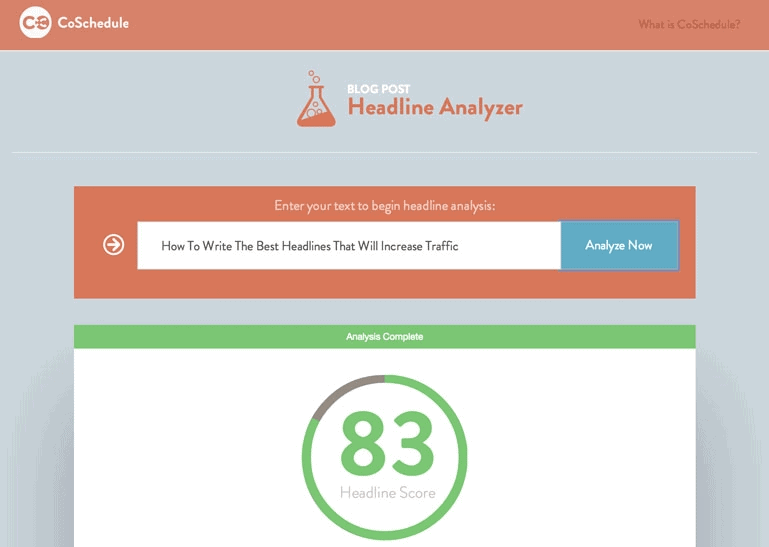
Throw in the primary keyword, keep the word and letter count short (6 to 7 words and 55 to 70 characters) and score it with a freeheadline analysis tool, and you’re all set.
2. Focus on readability
Now that long-form content is a trend nowadays, readability is becoming more and more important.
Your readers and Google need to absorb your pages of content to know if it is interesting.
Instead of making big chunks of paragraphs, break them down and use subheadings.
This way, your goal will move your reader from one paragraph to the next and your job will be less daunting.
For this reason, numbers and bullets are becoming popular ways to deliver the topic in articles.
3. Improve the flow, not just keyword count
Keyword stuffing is plain unacceptable nowadays. It makes little sense for your readers and it doesn’t do well with Google either.
Not only will your content piece be a chore to read, but it will also get you a penalty from Google.
You will want thousands (or millions!) of eyes on your content.
And if you get to that level, you won’t be able to sleep at night knowing your readers thought of you as a run of the mill source of content or worse, a scam of a company.
A good sign that you’re serious about your business is to have flawless content pieces with top of the line graphics and superb writers deliver on this.
This way, the first impression readers make will be great and immediately associate this with your company’s image.
For free tools to get you there, you can check outGrammarly Premium for proofreading.
Conclusion
Now that you know the responsibilities of an excellent content writer, we hope you can make more confident decisions when hiring one or doing it yourself.
This way, it’s now easier to isolate what tasks you can delegate and prioritize.
The best thing with content writing is that there’s just no one-size-fits all solution or process to magically make ‘perfect’ content.
You can try new things if it means tweaking your format or topics to get better results.
Additionally, incorporating social media into your content writing strategy is crucial for enhancing audience engagement and optimizing content visibility in digital marketing.
But not everyone can put their thoughts in a state of free flow yet well-directed enough to achieve a goal. It takes skill to sit down and internalize how to develop content writing.
So what is content in the writing process?
Literally, it’s the words that go in the document. But done right, it’s words that the readers relate to.
Knowing this, writers are wise to mind their audience, pay attention to structure and make use of more than just creativity.
The Writing Process
1.Preparation and Research
While writing is all about letting out your creative prowess, you don’t do it right away. This step ensures you layout everything you need to do as a marketer.
Some things you need to mind at this point are the buyer persona and your content marketing plan to create a solid outline. You will need to research for both before starting your piece.
2.Drafting
When you first start with your content piece, it’s crucial to let ALL the ideas flow. There is no wrong punctuation, grammar, syntax, etc at this stage.
When you take more than a split second to revisit a word and correct it, don’t do it at all just yet.
This way, you can let your creativity out and spare no time to stop and edit.
When you’re done spilling your creative juices in the drafting stage, you then tear it apart and build it back up in editing.
This step is the toughest one. If you have an official editor among your team members, good. If not, the writers must edit themselves and this method can be prone to biases.
Here, you mind grammar, syntax, flow and overall correctness of your piece. When editing, it is a great practice to go about at least twice.
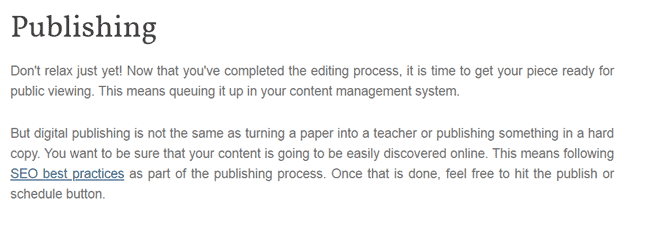
4.Posting and Promoting
Posting is much like publishing books. The difference? It’s now in the hands of whatever content management system you subscribed to (e.g. WordPress, Wix, Weebly, etc).
If you’re done with your document, it doesn’t stop there. It’s equally crucial how we promote or distribute the finished content–on social media, your blog, email, etc.
It doesn’t really exist if it’s not being read, right?
What is Content Writing?
Now that we talked about the process of content writing, let’s look at what effective content writing looks like. Content writers need to mind the trends and how to best make use of their time.
In a nutshell, content writing is making relevant content for your target audience usually in hopes of promoting a brand or business.
With that said, here are two great content types that really show you what content writing is about:
Web Content
Although there are a lot of content types out there, this one really applies to literally everyone in the digital space.
Websites are like online real estate where sub-pages are front doors, balconies, gardens, etc–you get the picture. You just can’t go making a website without them.
For web content to be great, it has to be informative. But informative can be boring, right?
Not to the right audience it isn’t. Combine great web content writing skills with SEO and your brand will be unstoppable!
Blog
Now that you have your ‘digital foundation’ in place, the blog covers the form and interior. This gives it attitude and helps bring your SEO to a whole new level.
Blogging does this by relating content to your target audience.
The result? Companies who consistently blog every month (11 times and higher) get four times the leads compared to companies who don’t blog as much (5 times or less).
It achieves that level of results because blogging…
Shows off your brand’s personality
Boosts SEO by talking about topics your audience relates to
Increases page views and has great ROI
Content Writing Examples
Screen Clip taken from biztraffic.com
See this short screen clip?
It’s a good content writing example because this short piece is clear and concise while still satisfying SEO goals.
1. The first sentence has an exclamation to it since it’s in the middle of the process (readers might already be bored at this point).
2. In the second paragraph, you see a link that leads to another page (owned by the same blog) to boost the number of readers on another article.
Screen clip taken from expresswriters.com
Here’s another good one.
When writing content, you avoid selling something. But after you talked about a topic your audience cares about, you kind of deserve to sell something (best keep the tone light and not sales-y, though).
In this case, readers who care enough about the topic–creative writing–may just get a copy of that book.
That’s what a good content writing example is–something they’d want to buy for the info, but it’s free.
Content Writing Formats
Now that you know the core processes and what makes a piece of content good, here are other common content writing formats you can try:
1.Article
It’s like a blog post, but focused on being informative where there is more attention to facts and references that are easy to validate.
2.Checklist
A list of usable tips for your target audience; these are usually short and very actionable which makes it enticing for the people with the problem being addressed. The more specific the issue, the better.
3.eBook
Still informative, but usually covers an appealing topic very specific to a target audience. This is commonnly used as a lead magnet since the brand making this has some authority on that topic.
4.Whitepaper
These are lengthier than ebooks and act as a detailed report. This is ideal for technical products that require explanations so businesses can better appreciate the benefits. Whitepapers work best as lead magnets for business-to-business relationships.
5.Social Media Post
These are bits of info shared on platforms like Facebook and LinkedIn. It directs people to another, bigger source of information should they be interested with what was posted.
6.Case Study
This talks about how users of a product or service can benefit from it and helps prospects with a buying decision. Businesses can use this to showcase the effectiveness of their offer.
7.Presentation
Great for storytelling and can quickly deliver information through slides. SlideShare is one great medium brands can use to increase SEO.
8.Q&A
This can also be Frequently Asked Questions (FAQs) or Ask Me Anything (AMA) sessions. Unlike other more common content forms such as short and long articles, this simulates a two-way conversation and helps engage your audience. Done right, it makes them feel heard and taken care of.
If you’re interested in just the content writing basics, let us give you a summary of the guidelines.
This should be a good learning framework and even help you if you’re looking for great content writers.
Great SEO starts with research. Writers know this for a fact and don’t merely write.
Keywords aren’t all you should write. It has to have a good flow so the Call-To-Action makes sense.
Good writers write well. Great writers know that the content piece is only the tip of the iceberg of overall marketing efforts. This means putting hyperlinks to sources–inbound, outbound, or even using email to link to social media, etc.
Not a dull moment – writers keep it lively, use formatting to engage the audience, paint the picture for readers, and make sure the readers care.
Nothing was made up when checking references–whether those are topics or just quoted phrases, everything checks out.
It is easy to read even for a fifth grader, unless there are some technical topics.
To get all the steps above much easier to do and save more time, use SEO content tools.
At the end of it all, a good writer makes sure the content brings value to the reader.
Conclusion
And that’s a wrap! We know we used ‘basics’ and ‘common’ in this article, but what we really mean is ‘foundation’ and ‘proven’ respectively.
There are good practices, and there are great ones that really up your content marketing game.
Knowing what content in writing is, the best types to use, and the foundations that your team should have, can go a long way with your brand.
Need more help with writing good content? Here are content writing tips you must observe!
This post will fill you in on what you need to know about ghostwriters. What does their job mean and is ghostwriting even legal?
If you read until the end, I’ll make it worth your while and walk you through the steps on how to hire one.
Ready? Then, let’s get right to it.
What does a ghostwriter do: Introduction
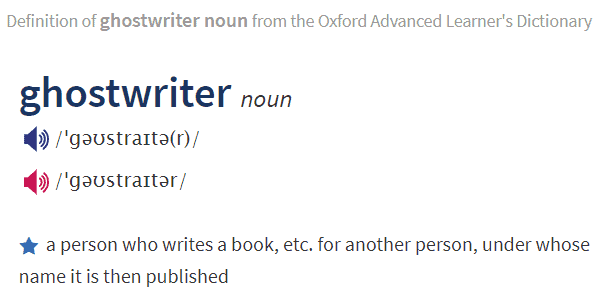
According to the Oxford Advanced Learner’s Dictionary, a ghostwriter is:
a person who writes for another person, under whose name it is then published
Simply put, ghostwriters write for somebody else — and are paid to do it. Whether they get credit for their work depends on a particular assignment. It could also depend on the client.
As a ghostwriter’s client, you could say that they collaborated with you on a piece if you want to credit them. Or, you could carry on with your business.
Either way, one thing’s for sure:
A ghostwriter for hire doesn’t own the rights to their work once they already submitted it to their client. The fact is, you pay a ghostwriter to write for you anonymously.
Want to know of popular works that were ghostwritten? Then, you won’t be disappointed because there’s a lineup of them. Many articles on the web, children’s books, classic novels were ghostwritten.
To cite a specific work, there’s The BabySitters Club, a young-adult series credited under Ann M. Martin’s name. Below, you’ll see a photo of one of the books from the series.
The fact that a ghostwriter pitched in to write for The Babysitters Club is no secret to most fans of the series. The ghostwriter’s name is Peter Lerangis and while he wasn’t credited in the book covers, he wasn’t bothered.
His sole focus was on doing a great job as a writer. Of the task, this is what he said:
“I was petrified I’d be terrible at writing this kind of book, so if the chapters were bad they could find someone else, and we’d part friends.”
As the job title of ghostwriters suggests, they’re ghosts. Getting by unnoticed is important in their line of work.
Here are more traits of successful ghostwriters:
Organized – They rock at sorting out every piece of information you give them. And they’ll use the info when they see fit.
Flexible at reflecting your voice – They’ll figure out a way to let their work capture your writing voice
Confident and professional – To make you feel at ease that they can handle your project, they’re trustworthy and experienced
You can call ghostwriters by other names such as substitute or assistant writers. You can even go fancy and refer to them as behind-the-scenes magicians. However, you’ll be crossing a line if you call what they do illegal.
Let’s put it this way.
You want to build a house. And if you do it only on your own, you’re most likely not going to make it happen.
So, if you put it this way, it’s as if you’re also asking this question:
“Is it illegal to have a lack of knowledge and skills in building a house?”
And apparently, the answer is no. If you’re not good at something, the practical way to go is to let a qualified person take over.
To address the aforementioned scenario where you want to build a house, the solution is to hire qualified people. Carpenters, roofers, architects, and more can do it for you.
However, you’re not wrong for raising this matter. Especially if it’s going to be your first time to hire a ghostwriter, it’s only fair to want to clear the air.
So, here are facts that could inspire confidence in you and remind you that there’s nothing wrong with paying for a ghostwriter’s services:
The practice of ghostwriting dates back to the 5th century B.C. – George Washington’s Farewell Address? The late US president’s right-hand man, Alexander Hamilton, came up with the words for it
If you asked for your ghostwriter’s consent that you’ll get credit, the setup is ethical – you can let them sign a contract or simply discuss matters. Either way, inform your ghostwriter of the scope of the work you require.
They work in almost every industry where writing is involved – this includes the music, political, and film industries
Why do you need to hire a ghostwriter?
81% of Americans say that they want to write a book. Sadly, however, they can’t.
A common reason is the lack of time to invest in writing a material that anyone would be proud of. After all, creating excellent writing can be very time consuming.
Whipping up 500 words can take more or less an hour. And this doesn’t even take into account the possible distractions that can arise.
For instance, what if a peer suddenly swoops in and talks to you non-stop?
So, if you don’t have enough time to write, then talk to someone who does.
Here are more reasons why you need a ghostwriter:
Maintain reputation and increase visibility – Want to remain consistent in getting your brand’s story out there? That’s what ghostwriters are for!
Earn money – paying for a ghostwriter’s services is a onetime fixed cost. All future earnings from their work are yours.
Get a different point-of-view – Ghostwriters can bring fresh perspectives to the mix. In turn, they can produce better content based on your ideas.
How to hire a ghostwriter
The good news is, ghostwriters are professional writers. As long as you choose the right candidate, you can rely on them to write any material. Books, short and long-form blog posts, case studies, musical scores, and more? They’ve got you covered.
If you’re ready to approach a ghostwriter for hire, here’s a three-step process on how you can do it:
Step 1 – Know what you want in a ghostwriter
Ghostwriters can work in two ways:
1. Work closely with you and receive regular feedback – Ask them to share their work with you. This way, you can offer feedback and request revisions as you see fit.
2. Work on their own after a thorough project discussion – Be hands-off, as long as you communicate effectively
It’s your call how you want a ghostwriter to provide services. Either way can work out well. The important thing is, the ghostwriter you hire should also thoroughly understand how you want them to work.
Step 2 – Prepare your budget
In some cases, ghostwriters charge their clients a per-word rate. This means you shell out cash for every word they write for you.
If that’s not the case, the price you have to pay for a ghostwriter’s services usually depends on the following factors:
Time – You pay for the amount of time a ghostwriter needs to invest in your work. For example, if you offer them a project that will run for two weeks, be ready to shoulder their two weeks’ worth of services.
Experience – The level of their writing ability should justify the cost of their services
Amount of work – Need them to do in-depth research, too? If you give them too much work to do, be ready to pay for all these.
Step 3 – Look for qualified ghostwriters
Know a trustworthy friend who uses ghostwriting services? Then talk to them.
Word of mouth referrals remain a great way to find good ghostwriters. From your friend, you’ll get a name — and a solid grasp of this ghostwriter’s ability.
You can also look for ghostwriters online. Because a ghostwriter often works as a freelancer, check out freelancing marketplaces.
Here are also some sites worth dropping by if you’re looking for high standard ghostwriting:
Reedsy – A marketplace where you can easily contact a professional ghostwriter
Remote – A platform that connects over 2.5 million professionals who specialize in remote work. This includes ghostwriters.
Writers.work – A job aggregator for writers who want freelance work
Final thoughts
So that’s what you need to know about what a ghostwriter does. I hope I addressed your concerns about the subject matter well. If you have any questions, don’t hesitate to reach out or leave a comment below.
Remember, keeping new content flowing is a surefire way of driving your online business to the top. If you don’t have enough time to write, don’t worry. Let a ghostwriter step in!
Providing “high-quality,” “actionable,” and “error-free” content won’t cut it anymore. It’s because everybody offers the same promises to clients.
That’s why I approach writing differently compared to others:
I ensure that all my articles are maximized to rank on Google for their target keywords.
By getting more clients to appear on top of search engine results pages (SERPs), the happy they are, the more work I get, and the more money I can spend on new Nintendo Switch games!!
But I digress.
To help me create content that clients will love, I use search engine optimization (SEO) writing tools to make my job much easier.
There are many excellent SEO content writing tools, but below are some of the best ones I’ve used so far and are part of my SEO content creation process.
Your target keyword is crucial to the success of your SEO content.
It won’t rank on Google search if it’s not optimized for keywords with high search volume and low competition.
That’s why you need to find such keywords to help position your content to rank on the first page of Google search results when people search for them.
Using tools like Google Keyword Planner and Ubersuggest, while helpful to some extent, falls short of providing you with more detailed information about a search phrase.
In particular, both tools don’t show how easy or difficult it is to rank for the keyword, what the intent of each term is, and other factors.
As a result, you have no idea which queries to target in your content!
To help you develop a low-hanging fruit keyword, use a keyword research tool likeLowFruits*.
It’s a tool similar to Keyword Chef in a lot of ways. You can find tons of long tail keywords you can target in your content from a seed keyword.
LowFruits then provides various filters to help you find search terms relevant to your writing goals.
But before I get ahead of myself even further, let’s start at the very beginning:
Perform Traditional Keyword Research
You can sign up for a free account and gain a limited number of daily searches.
However, if you purchased credits to your account (more on this later), you will be able to unlock the true power of LowFruits.
Go to KWFinder on the left dashboard. This loads the page where you can enter your seed keyword and extract hundreds and thousands of keywords.
You can also use the wildcard search operator on the search bar to help you find more precise keywords, similar to what Keyword Chef allows you to do.
Also, enter the correct country and language for your query for accurate results in the report.
Give the tool time until it finishes organizing the data for you.
The next page will show the number of keywords the tool extracted.
From here, click “Access” to show you these keywords.
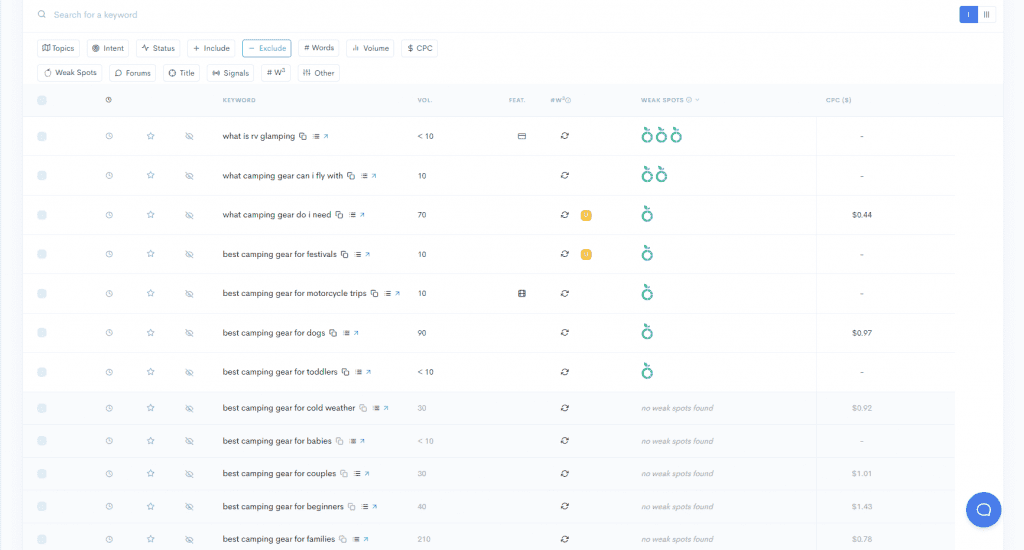
LowFruits analyzes the first few keywords for free. Here, it shows you the search volume, SERP features, and, most importantly, the Weak Spots.
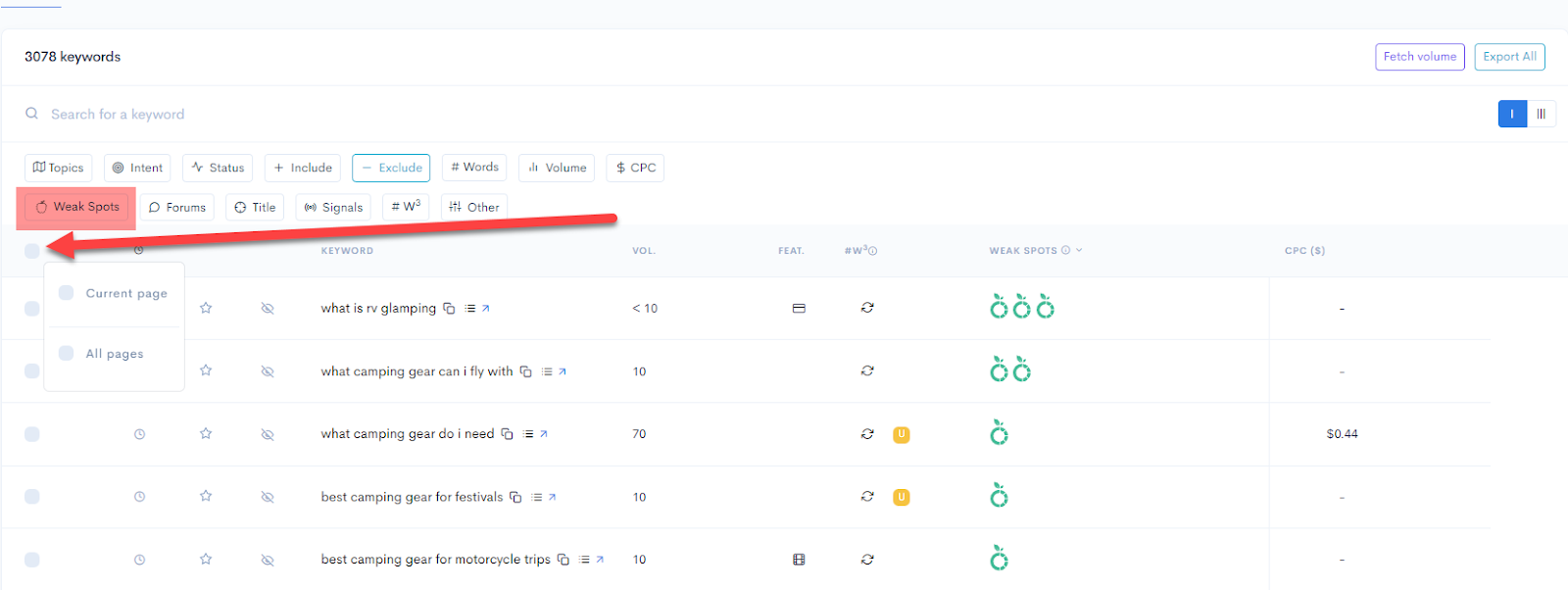
If you want to extract the other keywords in the list, click on the check box just below the Weak Spots button on the menu. These are mostly long-tail keywords with specific intent and low KD, which you want to target in your content. Another tool that can help you find these is Long Tail Pro.
LowFruits then asks you to select all keywords on the page or the entire selection.
Once you’ve chosen the keywords you wish to extract data for, click on the “SERP Extr.” button so the tool can analyze them.
Wait for a bit before you can see the results.
Identify Low-Hanging Fruit Keywords
We need to go back and talk about the Weak Spots feature, as it’ll play a vital role in your keyword research process.
It works like the Keyword Difficulty metric, which tells you how difficult ranking for the search term is.
However, it shows you different-colored fruit icons to indicate keyword competitiveness.
A green icon means that the keyword has a site on the top ten of search results that’s not strong. The tool measures this by looking at the site’s Domain Authority.
The lower the score is (on a scale of 0-100, 0 being the lowest), the easier it will be to leapfrog over them on SERPs simply by writing great content.
On the other hand, a blue icon under the Weak Spots column means the site ranking on the top 10 of SERPs for the term is a forum site.
Historically, you can easily outrank forum sites since the information isn’t as organized adequately as an article or blog.
From here, a keyword can have a mix of blue and green fruit icons.
And if the keyword shows ten green fruit icons under the Weak Spots column, you should target the keyword to rank on top of its search results!
Filter Keywords Based on Your Needs
While targeting low-hanging fruit keywords is essential to increase your organic traffic, you must approach your keyword research more strategically.
In this case, knowing the search intent for a keyword allows you to create topical authority by creating content users want to read for that specific keyword.
This allows you to rank on top of organic search for your keywords and attract more organic traffic!
For example, you want to find a mix of informational and transactional keywords to target in your upcoming SEO campaign.
The informational content sets the stage for you to showcase your expertise.
Once you’ve earned their trust, it’ll be much easier to lead them down your commercial pages, where they can purchase the product or service you’re recommending.
Going back to LowFruits, you can filter the keywords based on intent by clicking on the Intent button on the menu.
All the keywords you can filter here have commercial or transactional intent. However, you can organize them based on whether the user is still considering purchasing or has bought the product already.
This can be valuable to your keyword research since you want to create content that satisfies people at various stages of your sales funnel.
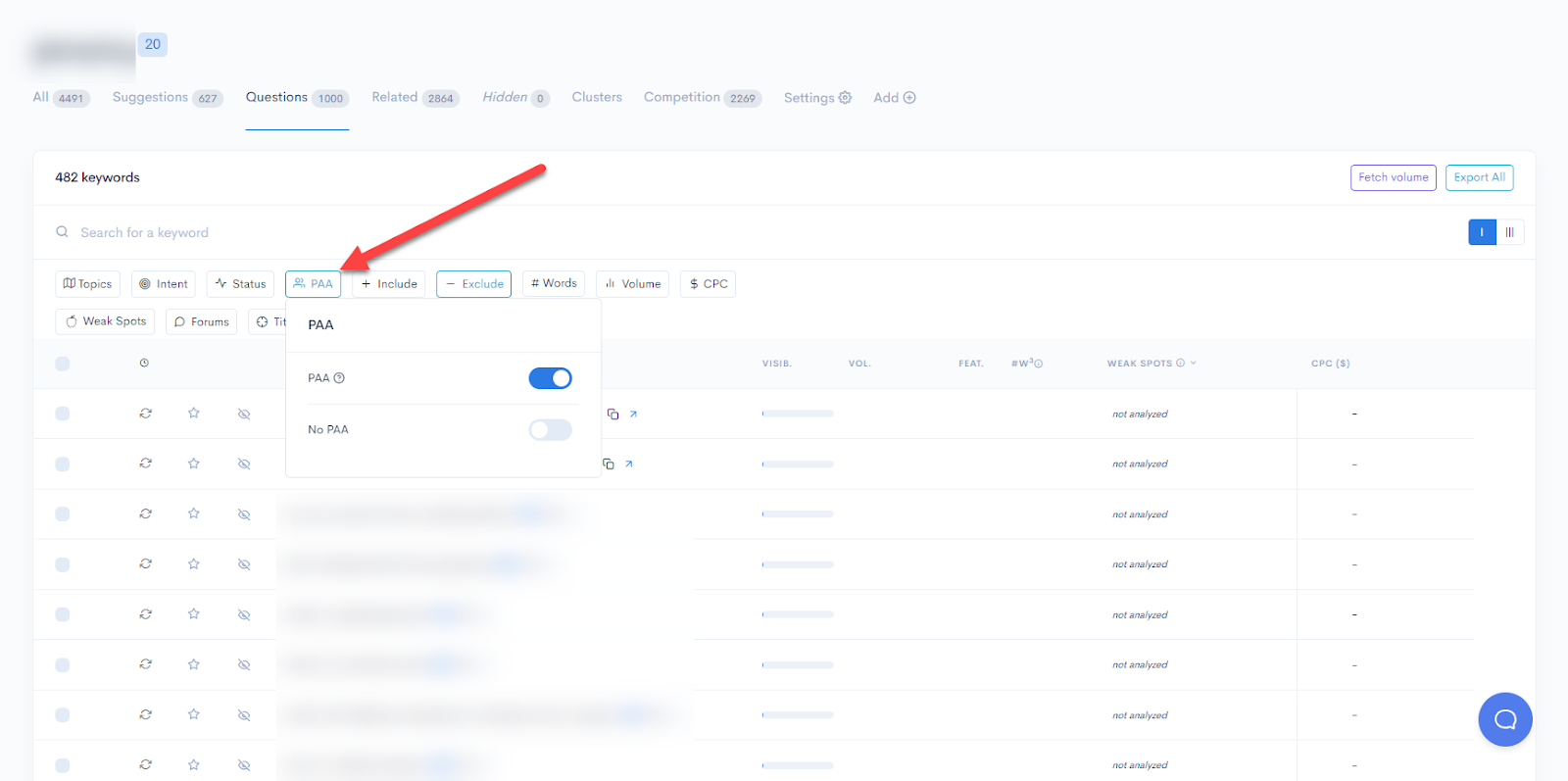
But if you want to beef up your content at your funnel’s ToFu stage, the People Also Ask (PAA) filter comes in handy.
Click on it to open a small window allowing you to filter the result to show only PAA keywords or remove them from the list.
These filters allow you to analyze highly targeted keywords for your SEO content writing research.
For instance, you can target PAA keywords with low competition based on LowFruits’ analysis and write about it in your blog. It’s that simple!
Pricing
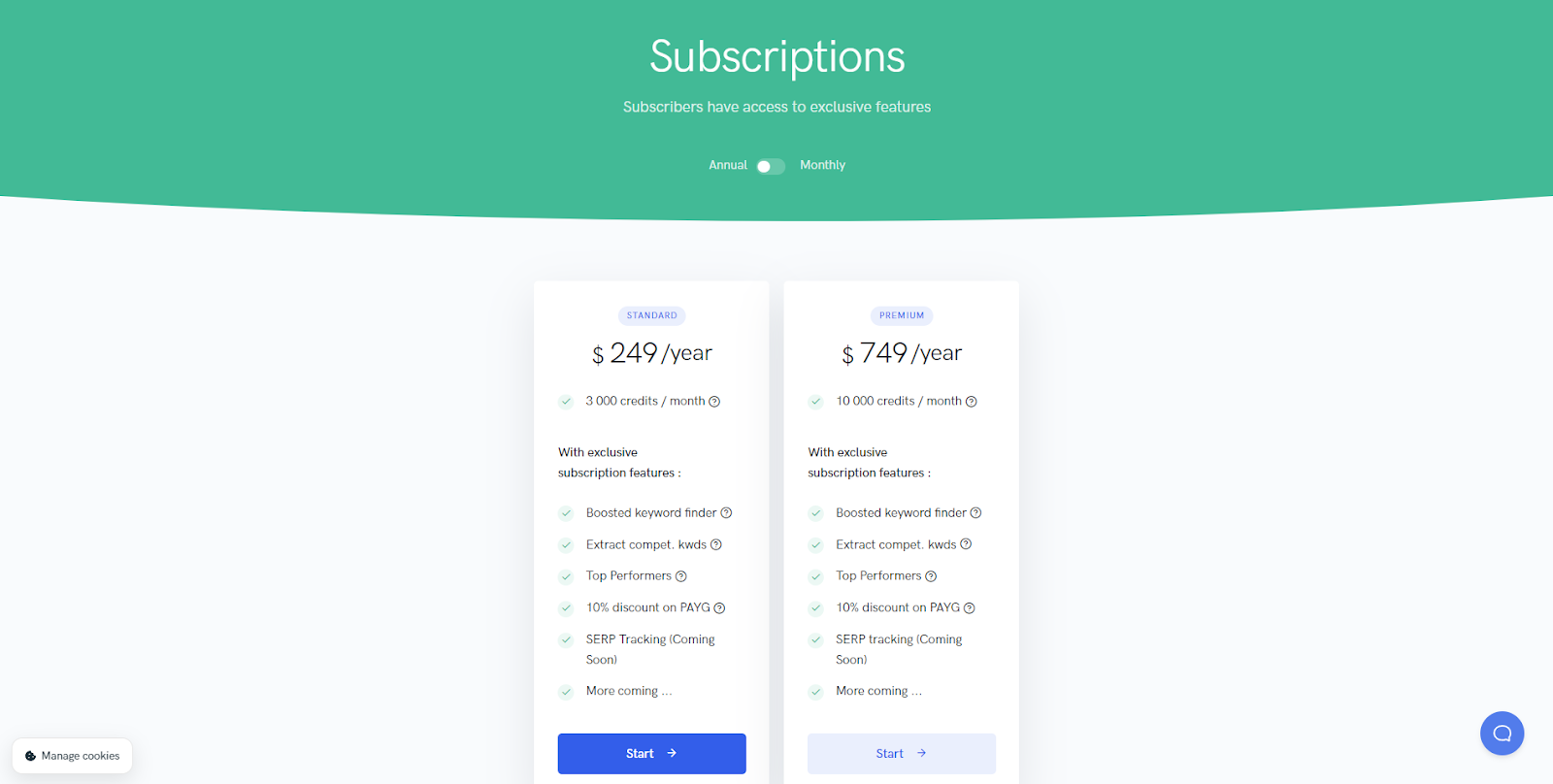
Unlike most SEO tools, LowFruits has a credit-based subscription.
Basically, you buy credits from the site. Each keyword analyzed by the tool costs one (1) credit. That includes the search volume, Weak Spots, and other factors.
The cool thing about LowFruits is that the credits don’t expire until the following year (365 days after purchase). That means you can still use your purchased credits over the next few months.
Not to mention, the credits aren’t costly by standards, especially if you just occasionally search for content ideas.
LowFruits also offers a subscription-based payment ideal for power users, particularly for niche site owners who need thousands of keywords every month to power their blogs.
SE Ranking is an SEO tool that lets you monitor your keyword rankings. It can also let you analyze website competitors, perform on-page SEO analysis, and can even help you find related keywords to optimize for your topic.
However, I primarily use the tool for its Keyword Grouper feature. This is where you export the keywords extracted from your keyword tool and cluster similar terms.
As a content writer, I love this feature for helping my content increase its chances of ranking for multiple keywords instead of one.
As you should know by now, a page can rank for multiple keywords simultaneously. This is true even if you target a single keyword in your content.
At this point, it’s a matter of identifying which keywords to target in your content and why.
Thankfully, you don’t have to overthink it because SE Ranking will do the heavy lifting for you.
Before we begin, download the keywords you’ve gathered from your keyword tool.
Using LowFruits, you can check the boxes of keywords you want to export and click on “Export” to download them as a list in an XLS file.
Now, click on More > Keyword Grouper from your SE Ranking dashboard to access the feature.
On the next page, enter the name of the report. Then determine the accuracy and method by which the tool will group the keywords.
By default, SE Ranking will group keywords that share three (3) similar URLs on the first page of SERPs with the chance that it might group irrelevant terms into a cluster.
You can change the settings before you begin the clustering process. For now, we’ll leave the settings as is.
Next, scroll down to find where to include the keywords you want to group. Copy and paste your list on the text box or upload the keywords sheet.
Keep in mind that each keyword requires you to pay outside of your subscription with SE Ranking.
Granted, the rate isn’t very high, but the amount may pile up if you have thousands of keywords you wish to group. You can, however, lower the cost by not including the volume check from the research.
If you’re all set, click “Start grouping.” Wait for a few minutes or hours before you get access to the report.
Once you do, you should see something similar to the one below:
It shows you the number of clusters grouped by the tool. For each cluster, you can see how many keywords it has and its total search volume.
Click on each group to unfurl the results and show you the keywords grouped into which group.
As mentioned, there may be irrelevant keywords lumped into the clusters. So, you must review the clusters first and take out the unrelated terms before optimizing for each one.
From here, you can decide which keyword groups to target as a content writer for your site or client based on the metrics provided.
If you want, you can run the cluster using LowFruits again to determine which among the keywords have the best Weak Spots, i.e., lots of low-quality sites ranking for the terms.
This way, you can further refine your cluster by targeting only low-hanging fruit keywords!
Other features include competitor research, page monitoring, and more.
Perfect for: Clustering keywords to optimize for old content
Among the free SEO writing tools, Google Search Console (GSC) may be the most indispensable.
Initially, it helps you monitor your site’s search performance based on multiple SEO factors.
For content writers, you can use this to identify which pages are getting the most clicks and impressions.
First, you must install GSC’s code into your site months before doing the steps below. If you’re working for clients, ask them to give you access to their GSC account.
Also, your site should be generating a modest amount of traffic. If not, it won’t gather any data for you.
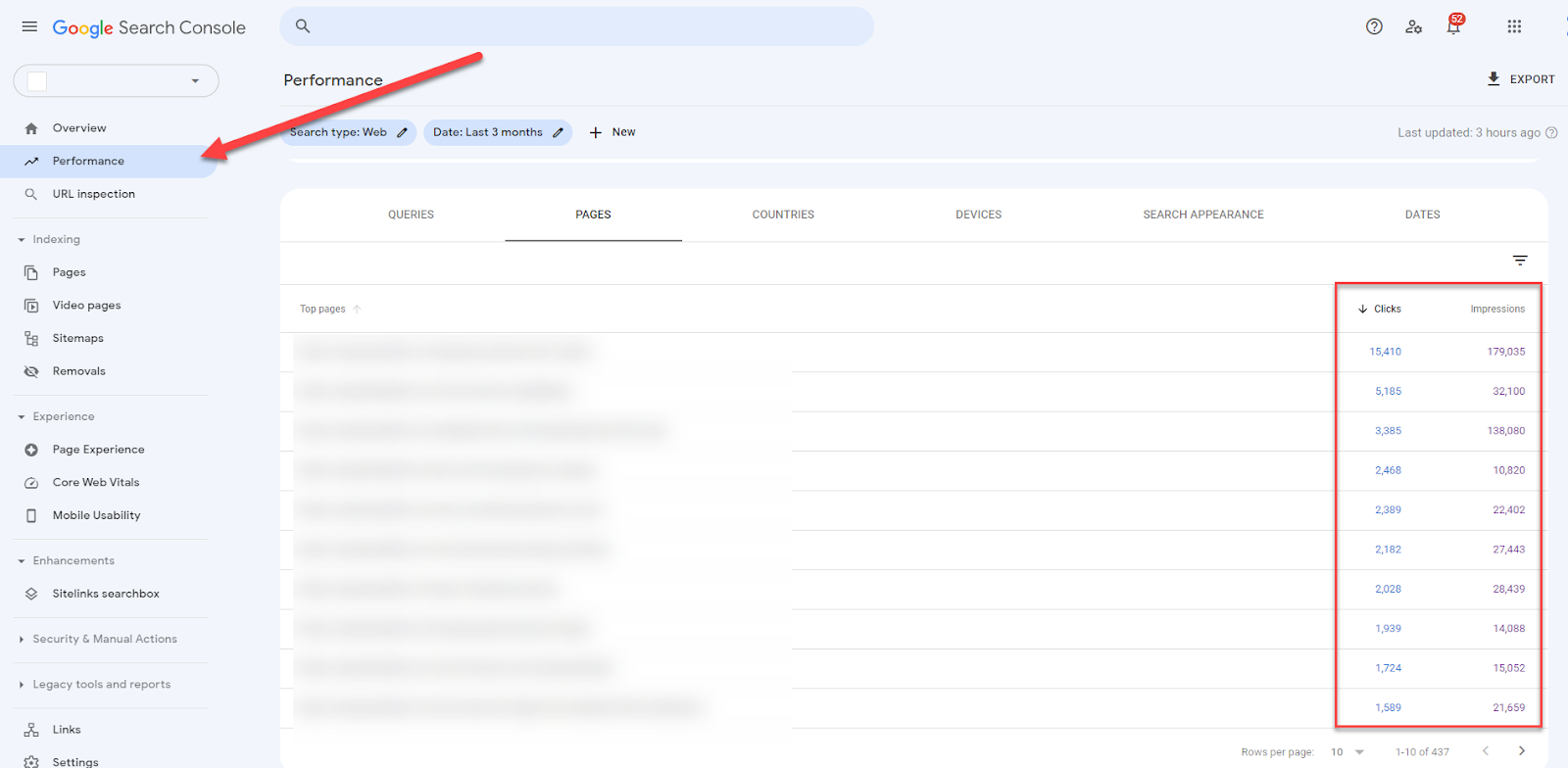
Now that’s settled, log in to your account, choose the site you wish to analyze, and click “Performance” on the left sidebar.
Scroll down the page and click on the Pages tab.
This should show your sites’ top pages based on clicks and impressions.
From here, identify pages that have low clicks and high impressions.These pages may be ranking for multiple search queries but not high enough to get clicked on.
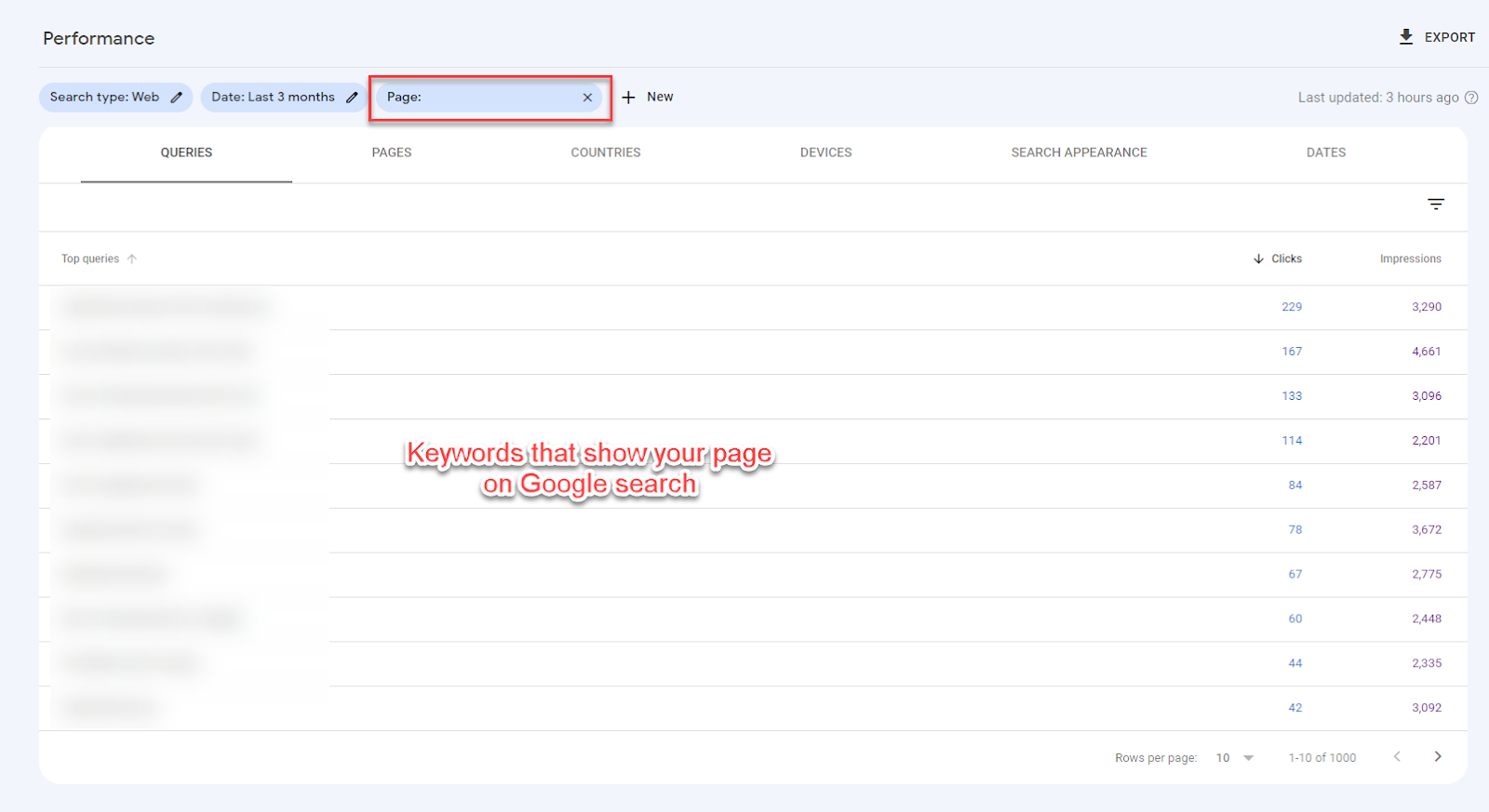
Once you’ve clicked on a page to analyze, click on the Query tab to show the queries that your page appeared on SERPs.
Use the information here to research which keywords here you should target when re-optimizing the page.
If you scroll up the page, you should also see the average ranking of the page for all the terms combined.
This could be useful if you want to identify pages that are ranking outside of the first page of Google. So, by optimizing your content (which we’ll get to later on), you can raise its ranking for these keywords and generate even more organic traffic!
#4 – ChatGPT
Perfect for: Content brainstorming and ideation
A lot has been said about ChatGPT over the past few weeks as of writing that others have said everything I could be writing about it in some shape or form.
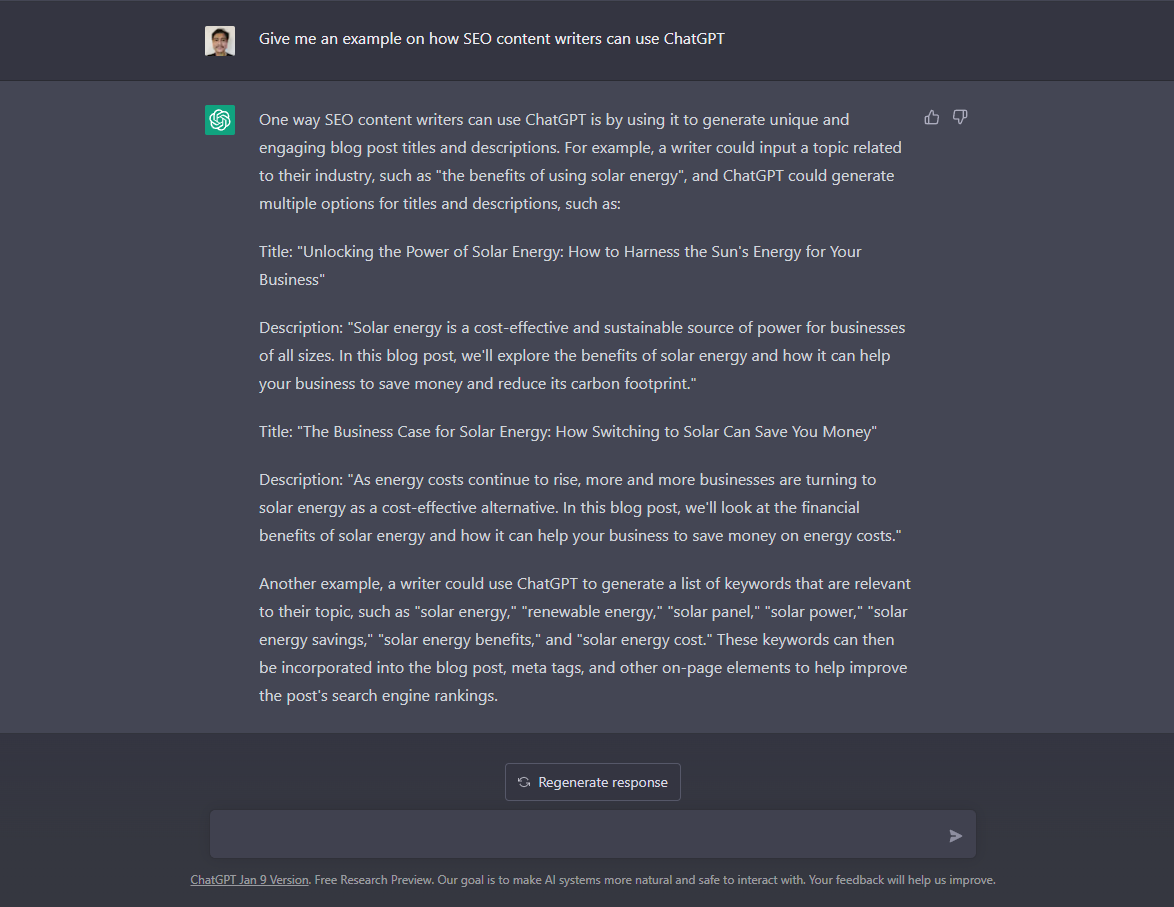
Instead, I’ll let the tool do the talking for itself:
Cool. How about an example?
Keep in mind that ChatGPT only took seconds to generate the text above.
However, as mentioned in the subheading above, it’s a great content brainstorming tool.
That means I use it to help me build the ideas I’ll write in certain sections of my article.
I don’t publish the text generated by ChatGPT as is. I make sure I edit it first and confirm if what the text says is true.
Whatever people may say about the tool, it’s still not powerful enough to write content on its own.
It still needs a real human to verify the information it’s saying and edit the piece to make it sound more personal.
That said, it’s simply one of the best free content writing tools you’ll find right now.
Take advantage of ChatGPT while it’s still available and find more use cases for your writing needs.
Once you have chosen the keywords for your content, you need to strategize how to write it with SEO in mind.
It’s not as simple as mentioning the keyword on the title, meta description, subheadings, and various parts of the article.
There’s a good chance that all your competitors are doing the same thing now. So, it would help if you did something else to help you stand out from the pack.
You will be optimizing your content for your keyword and getting insights on which on-page factors you need to prioritize in your content.
Analyze SERPs
Upon signing up for an account, enter the keyword on the search bar so the tool can analyze the pages ranking for it on Google and determine the factors that need your utmost attention.
Once the results pop up, you will see a graph showing the factors that potentially affect SERPs, such as keyword density, site speed, headings, meta tags, and more.
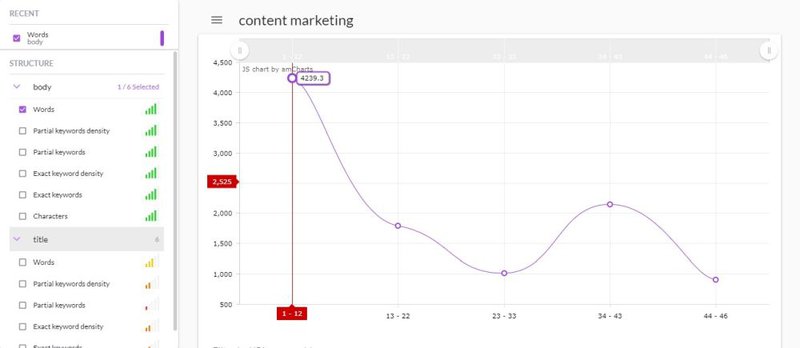
For this example, here are the results for the keyword “content marketing:”
In the graph, you will see the graphical representation of the number of words for every ten results (or every page) of search results.
The overall results from the first page have over 4,000 words. The graph trends downward as you move to the following ten results and so on.
On the left of the screenshot are the different ranking factors. You will see some of the elements in green.
It means those factors bear the most relevance in the ranking of the pages. In the example you just saw, you need to optimize your content based on the number of words, keyword density, and character count, among others.
To make the factors appear on the graph, check the boxes. Below is what the chart will look like after you do it:
You must choose the best factors to include in the graph to make it readable. At this point, the discrepancy between the number of characters of each post and the others is too wide. As a result, it renders the entire graph unreadable.
This content optimization software helps you identify which factors to optimize in your post.
The idea is to stick with the figures of the first ten results for the keyword.
The SEO content writing software helps you associate your post with the page ranking on the first page. By sheer association, you increase your chances of ranking for your target keyword.
Also, it prevents you from over-optimizing your content for factors that don’t bear any relevance in SERPs.
This enables you to avoid antiquated “tactics” like keyword stuffing in your content to ensure that you only include the best possible information about the topic in your articles.
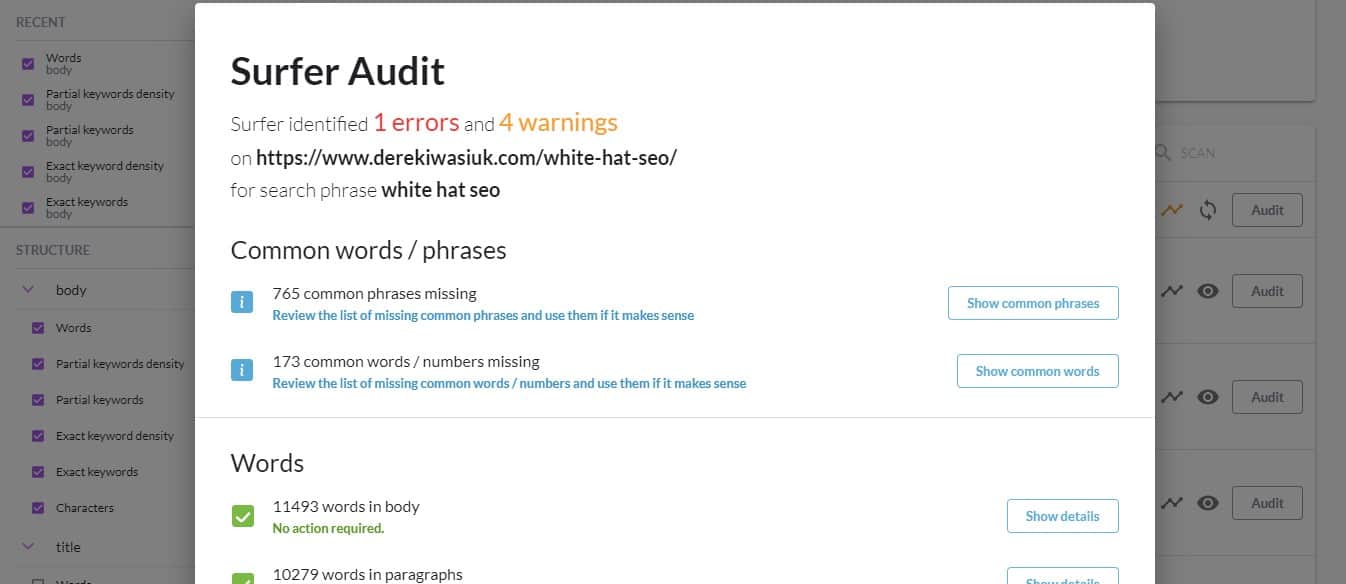
In fact, SurferSEO works even better if you want to analyze your published posts concerning pages that are ranking for their respective keywords!
When you’ve analyzed the keyword you want to optimize your content for, type in the URL of your page on the “Enter custom URL *” entry. You can do this even if your page is ranking for this keyword or not.
Once you have added your post, click on the Audit button on the right to view a brief report of your page.
Before running through the report, familiarize yourself with the keyword’s most critical factors in green. It shows you what you need to edit and improve on optimizing your content.
Click the “Show details” button for more information about the suggestion so you can make an informed decision instead of just implementing the changes.
Optimize Content for Your Target Keywords
Aside from using the SERP Analyzer, you can skip the steps above and use Content Editor instead.
It’s an SEO content optimization tool that uses natural language processing (NLP) to gather related keywords about the search phrase you want to optimize your content for.
Once the keywords have been processed, you must mention the terms in your content to increase your score.
To use it, go to the Content Editor and enter the keywords you want to optimize for your content.
Remember the keywords you clustered a while back? Well, you can enter them here and optimize for them simultaneously!
However, you can only enter a maximum of twenty (20) keywords into the Content Editor. So, be sure to include the very best keywords here.
Once Surfer SEO has analyzed the keywords, open the Content Editor to see something like this:
The goal is to create optimized content as measured by the Content Score indicator on the right sidebar.
The best way to do this is by including the words and phrases found on the lower-right side (the NLP keywords) in the article.
These keywords have a close relationship and correlation with the keywords you’re optimizing for.
So, by including them in the content, you increase its topical relevance to your target keywords, thus increasing your score.
And the higher your content’s score is, the higher its chances of ranking on top of search results!
Also, a Chrome extension lets you show the Surfer Content Editor sidebar on Google Docs. This is great if you prefer creating content on this writing platform.
The Content Editor is very similar to SEMrush’s SEO Content Template and SEO Writing Assistant (I’ve discussed this feature of SEMrush comprehensively in this post).
Cluster Keywords Automatically
As one of the best content writing tools for SEO, Surfer SEO allows you to cluster keywords as well, albeit differently than the process above.
Using the tool’s Keyword Research feature, enter your seed keyword.
Once the results come in, you will see keyword clusters, their respective monthly search volumes, and keyword difficulty.
Click on a cluster to see the keywords included in each.
Once you’ve chosen cluster you want to work on, click “Create Content Editor” so you write content for it,
Identify Existing Content to Re-optimize
What makes Surfer SEO the only SEO content writing tool you’ll need is that it also identifies which content to optimize for your site.
To do this, click on Domain Planner and enter your domain URL on the text bar.
In the results, you’ll see the pages ranking for keywords and their respective Content Scores.
The goal is to identify which pages are not drawing enough clicks from SERPs based on the keywords they’re ranking for.
To help you identify these pages, flip the Low Hanging Fruit switch to show pages with an average position between 10 and 20.
From here, you should be able to identify which pages to prioritize optimizing first.
You can also use its other filters to narrow down the pages to your specified metrics.
The Domain Planner is a great feature for content writers who would like to offer this as a service to clients.
Here’s an issue that content writers face regularly:
They’ll find themselves repeating the same thing over and over again.
This happens if they’re writing about the same topics and covering the same headings in all their articles.
This is also an issue that bloggers and even niche site owners deal with on a daily basis.
They can use ChatGPT to help break the monotony by asking the tool to write it. However, given the tool’s free nature, it’ll be only a matter of time before you have to pay for it.
So, to help you get ahead of the curb, use the content paraphraser Quillbot.
What it does is reword a sentence or paragraph into a unique passage that you can use in your content.
Let’s say you’re writing a roundup post about the best content optimization tools.
And part of the task is to describe what the product is and what it does.
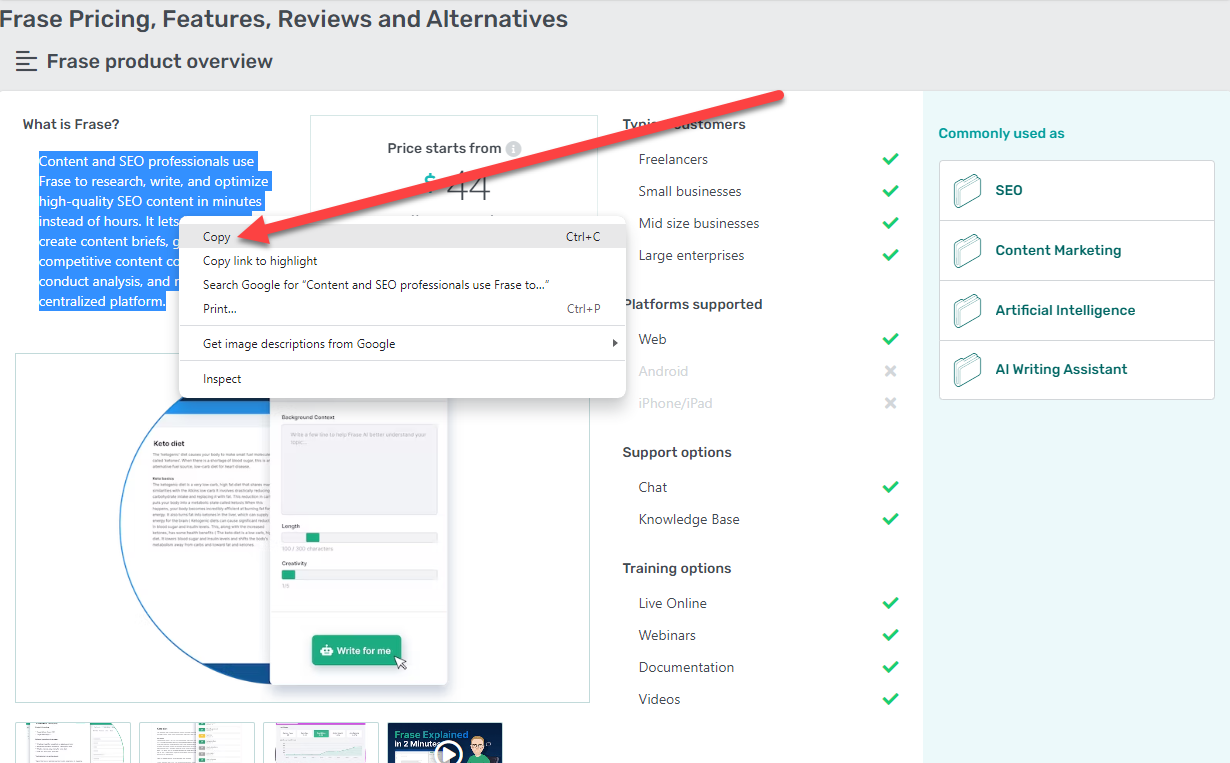
For this, head on to a site like GetApp and find the tool there. Then click on the App Info to show you its description. Copy the text you’ll find there.
Paste the text on Quilbot to paraphrase it.
Choose from different modes how you want the tool to paraphrase your content.
Once you’re happy with the paraphrased text, you want to ensure it’s grammatically correct.
If so, paste the text onto the tool’s Grammar Editor and fix all the errors the tool spots.
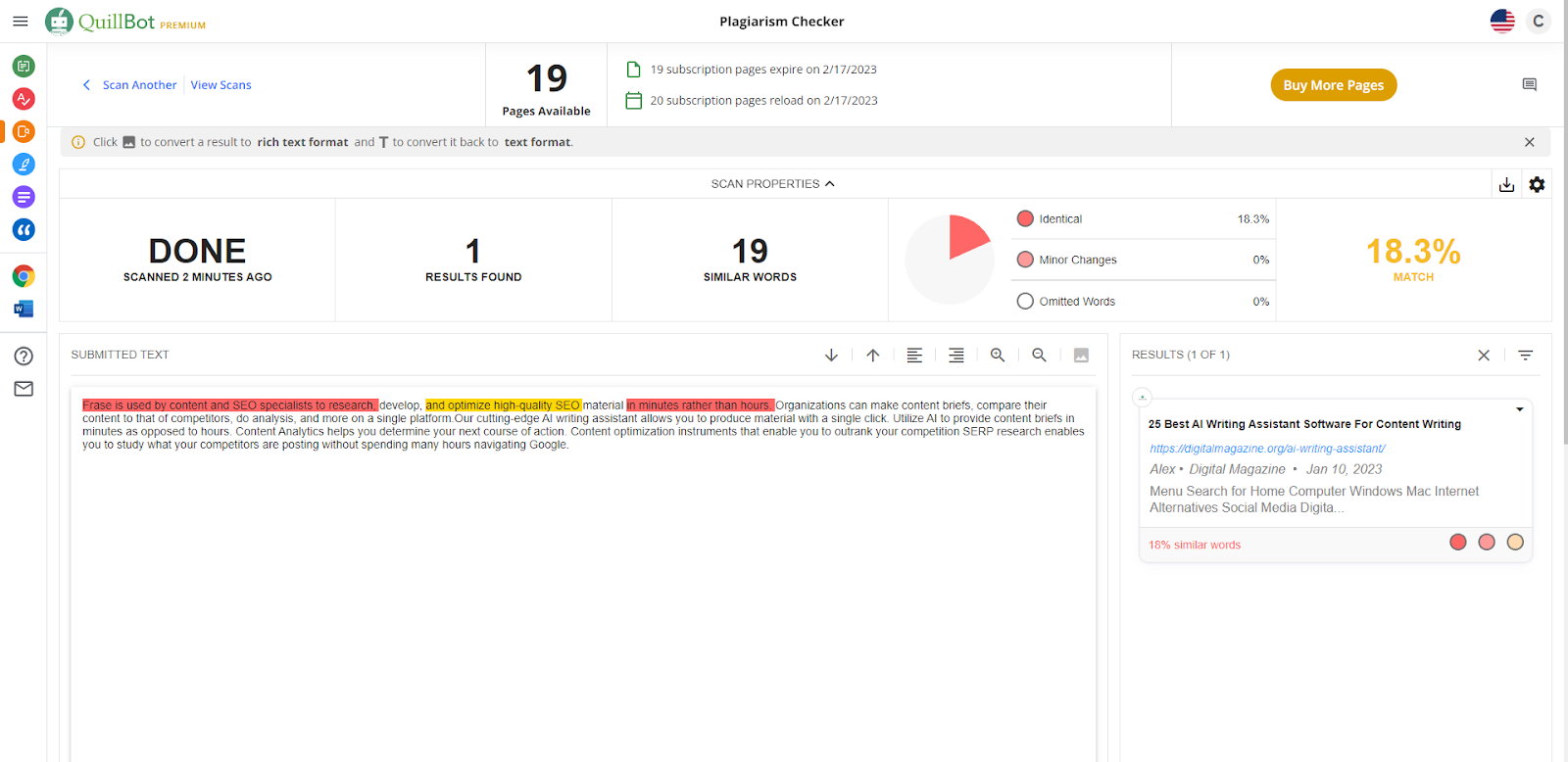
Once done, the last thing you want to do is use Quillbot’s Plagiarism Checker.
Since you copied the text from an existing page, there’s a chance that search engines may flag the text as duplicate content.
But by using the Plagiarism Checker, you can identify which passages in the text Google can detect. This way, you can manually edit them to avoid further detection. Another tool you can use to ensure content uniqueness is PlagiarismCheck.org.
Keep in mind that Quillbot provides you with a limited number of pages to analyze using this feature, even for paid subscriptions.
Also, one (1) page is equivalent to 250 words. So, an article worth 1,100 words will be considered five pages off your credits (5 x 250 =1,250) even if you didn’t maximize the last page credit.
So, be smart when analyzing text so you don’t burn through your credits.
Quillbot still requires manual intervention on your part (what SEO writing tool doesn’t need one?). Nonetheless, more than half of the job is done for you.
All you must do here is edit the page in a few minutes based on the plagiarized text the tool detected, and you’re good to go!
The free tool lets you download the Chrome extension to edit the post as you write whenever the tool spots an error.
The free account lets you fix major errors, but you need to subscribe to the premium plan for minor mistakes and suggestions to make your content much better.
Grammarly Premium scores your content out of 100. While striving to get a perfect score is ideal, you don’t have to. To be honest, having a score of over 90 is good enough for me.
Aside from detecting over 250 grammatical errors, it identifies plagiarism for you.
Run the plagiarism checker to ensure that your post doesn’t have identical blocks of text found on published pages.
Search engines frown on duplicate content, and by keeping your post unique, you increase its chances of ranking for your keyword.
You’re missing out on a lot if you’re not subscribed to Grammarly Premium as a content writer!
The tool checks over 250 common grammar mistakes and belts out suggestions on correcting them in your article with just a few clicks of a button.
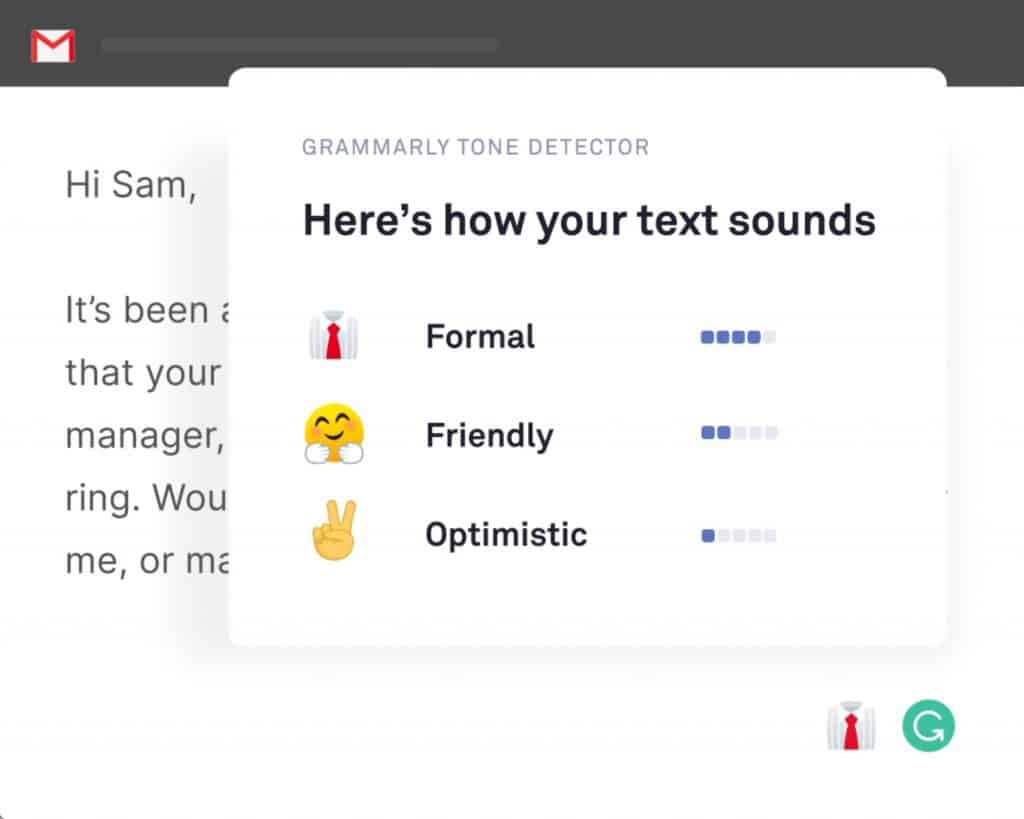
Otherwise, the free content writing software version of Grammarly is good enough to detect significant errors that make your content difficult to read. You can even integrate it with Google Docs to simplify your workflow further.
So, at the very least, give its free version a shot.
BONUS: Optimize your titles using this headline analyzer tool
Creating a great headline is a craft. It may sound easy to write a headline but coming up with one that generates enough CTR is not easy.
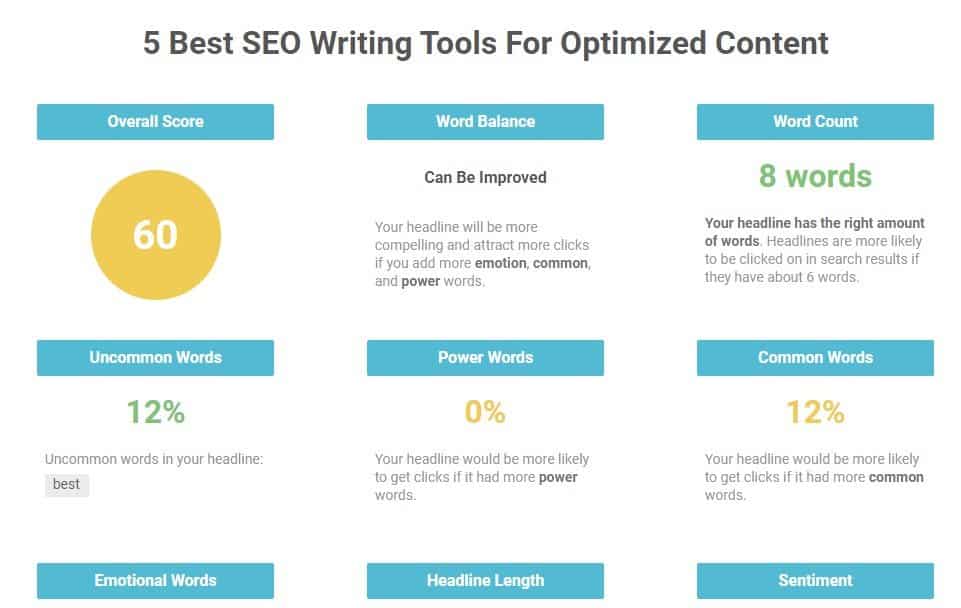
This is where a Headline Analyzer tool by IsItWP comes in to help you create enticing headlines. This tool helps you drive clicks and traffic by analyzing the headline based on word count, sentiment, power words, search preview, and six more factors to suggest an overall score.
The best they suggest is getting a 70 or above!
Thanks toReviewsXP for making this article possible.



























 You must choose the best factors to include in the graph to make it readable. At this point, the discrepancy between the number of characters of each post and the others is too wide. As a result, it renders the entire graph unreadable.