Category: Claude

  • Free Screaming Frog Alternative: I Tested LibreCrawl on 4 Real Sites (Where It Wins, Where It Breaks)

    Free Screaming Frog Alternative: I Tested LibreCrawl on 4 Real Sites (Where It Wins, Where It Breaks)

    The best free Screaming Frog alternative I have tested is LibreCrawl, an open-source crawler that does most of what a £259-a-year license does, for nothing. But “most” is carrying weight in that sentence. I installed it, drove it from Claude Code through its API, and pointed it at four real websites across three different platforms. Two things surprised me. On my own site, the free tool caught a structured-data error that Screaming Frog got wrong. On two client stores, it invented hundreds of server errors that did not exist.

    So this is not a “10 best free SEO crawlers” list. It is one tool, four real crawls, and a straight answer to the only question that matters: can a free crawler replace the paid one you are already paying for?

    What LibreCrawl is, and why I tested it against Screaming Frog

    LibreCrawl vs Screaming Frog in one line

    Screaming Frog SEO Spider is the desktop crawler most technical SEOs already run. It costs £259 per year. LibreCrawl is a free, open-source, web-based crawler that pulls the same kind of data: status codes, titles, meta descriptions, headings, canonicals, the internal link graph, images, and structured data. One is the polished industry default. The other is a community project you host yourself.

    How I ran the test (driven from code, not just clicking)

    I did not just open the LibreCrawl interface and watch a progress bar. I drove it programmatically through its REST API, the same crawl-then-reason loop I described in my Screaming Frog MCP write-up. Start a crawl, poll it, pull the per-page data as structured output, and analyze it. That matters here, because driving both tools the same way is the only way to compare them fairly rather than comparing my patience with two different dashboards.

    The test setup: four sites, three platforms, one honest method

    The four sites, and why they are a fair spread

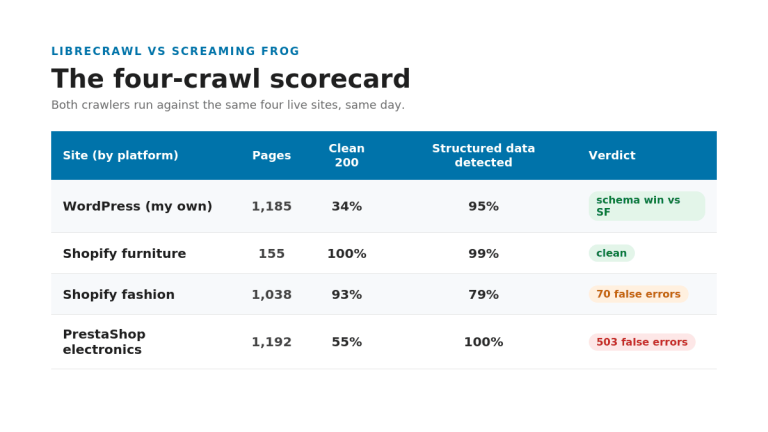
    I crawled my own WordPress site, a Shopify furniture store, a Shopify fashion store, and a PrestaShop electronics retailer. Three platforms, three very different technical setups, one open-source crawler. The client sites stay anonymous; the numbers do not.

    Site Platform Pages crawled Clean (200)
    My own site WordPress 1,185 34%
    Furniture store Shopify 155 (sample) 100%
    Fashion store Shopify 1,038 93%
    Electronics retailer PrestaShop 1,192 55%

    Polite settings, and verifying every finding

    I ran every crawl gently: one request at a time, with a two-second delay between pages. This was not a brute-force hammering. And when a result looked dramatic, I checked it by hand with a single request, rather than trusting the crawler’s word for it. That verification step is where the most interesting finding of the whole test came from.

    Where the free tool won: it caught a schema error Screaming Frog missed

    Screaming Frog reported zero structured data; LibreCrawl found it on 1,156 of 1,185 pages
    Same site, same day’s markup. One crawler said zero structured data. The other found it on 1,156 of 1,185 pages.

    Screaming Frog said “zero structured data.” It was wrong.

    When I audited my own site with Screaming Frog earlier, the crawl reported zero structured data across the entire site. On a site competing for AI Overview citations, that reads like a five-alarm fire. Except it was not true. My schema framework had been switched on the whole time. Screaming Frog had surfaced a problem that did not exist, and a less careful audit would have sent me “fixing” something that was already working.

    LibreCrawl detected schema on 1,156 of 1,185 pages

    I ran the free tool over the same site. It correctly parsed the JSON-LD schema and reported it present on 1,156 of the 1,185 pages it crawled. The 29 pages it flagged as missing schema genuinely had none. This was not a one-site fluke either. Across all four sites, LibreCrawl’s structured-data detection held between 79 and 100 percent, and every spot-check I ran confirmed it was reading the markup correctly.

    Why this is the finding that matters for AI Overviews

    Structured data is one of the levers that decides whether your pages get pulled into AI Overviews and other generative answers. A false “zero” pushes you in exactly the wrong direction: you either waste a day implementing schema you already have, or you rip out working markup chasing a ghost. On the single highest-stakes check in the audit, the free tool was the more accurate one. That is not the result I expected to write.

    Where it was a near-perfect match: redirects

    The default-settings trap: LibreCrawl is blind to redirects

    Here is the catch that will bite you if you do not know it. By default, LibreCrawl follows redirects and records the final destination. A link pointing at a 301 gets logged as the 200 it eventually lands on. So on its first pass over my site, it reported zero redirects, on a site I know is full of them. Screaming Frog reports every redirect as its own hop, out of the box. LibreCrawl hides them unless you tell it not to.

    194 versus 197, once you run the second pass

    So I ran it again with redirect-following turned off. This time it saw them: 194 redirecting URLs, against the 197 Screaming Frog found on the same site. That is agreement within two percent, from two independent crawlers, which is about as much validation as you can ask for. The cost is that you have to run two separate crawls to get what Screaming Frog hands you in one, and the second pass discovers fewer pages because it stops at each redirect instead of following it through. The data is accurate. The workflow is clunkier.

    Where it broke: it invented 503 server errors that did not exist

    Crawler-induced false server errors by platform, all verified returning 200
    Crawler-induced false server errors by platform. Every one returned a clean 200 when I requested it by hand.

    A Shopify fashion store: 70 fake Cloudflare challenges

    This is the part that would have embarrassed me in front of a client. On the Shopify fashion store, the crawl reported 70 pages returning 503 and 429 errors. They were not broken pages. They were Cloudflare bot-challenge responses, served because the crawler tripped the store’s protection even at one request every two seconds.

    A PrestaShop electronics retailer: 503 fake 500s

    The electronics store was worse. The crawl flagged 503 pages returning HTTP 500, more than 40 percent of the crawl. That is a catastrophic-looking result that would set off every alarm in a status report.

    I verified every one with a single request, and they all returned 200

    So I did the thing every audit should do and I checked. I requested those exact “broken” URLs by hand, one at a time. Every single one returned a clean 200. The pages were fine. The crawler had provoked the errors itself, by requesting product pages faster than a fragile server, or a defensive one, wanted to answer. The errors were real HTTP responses. They were not real problems.

    The pattern: the more protected the store, the more noise

    Put the four sites in a row and the rule is obvious. My WordPress site, with no aggressive protection, returned mostly real errors that were worth fixing. The protected and fragile stores returned storms of fake ones. The more defensive the platform, the more garbage LibreCrawl pours into your issue list. The takeaway is simple and non-negotiable: on any e-commerce store, filter the 5xx pages and re-check them before you trust a single count.

    The noise tax: 8,000 “issues” that are not 8,000 problems

    What is noise, and there is a lot of it

    LibreCrawl threw between roughly 4,000 and 8,400 raw issues per full-site crawl. The electronics store alone showed 7,830. That number is almost meaningless until you clean it. A huge slice is the fake 5xx pages from the section above. Another huge slice is correct but not actionable: noindexed archive pages flagged for “missing meta description,” login and cart pages flagged for missing canonicals, the normal furniture of a CMS that the tool dutifully reports as problems.

    What is actually worth fixing

    Strip the noise and the real, actionable list is small and consistent across every site: images missing alt text (a template-level issue almost everywhere), slow response times, overlong or too-short titles, and genuinely missing meta descriptions. Screaming Frog does this triage for you and hands back a curated list. LibreCrawl hands you everything and makes the filtering your job. That filtering pass is not optional. It is the difference between an audit and a panic.

    The engineering reality of “free”

    The bugs and limits I hit

    Free has a price, it is just not on the invoice. Getting clean crawls out of LibreCrawl meant working around real rough edges. A session-cookie bug had it polling empty sessions and reporting zero pages until I fixed how it held state. Its settings persist in a shared database in a way that leaks between runs. The stores rate-limited it. And when I ran two large crawls at once, the server ran out of memory and crashed, taking a half-finished crawl down with it.

    Free in dollars, not in hours

    None of that is fatal. All of it is fixable, and a more careful setup avoids most of it. But it is time, and time is the thing a £259 license quietly buys back. Screaming Frog’s polish is not a luxury; it is hours you do not spend debugging your crawler instead of auditing your site.

    So can a free tool replace your £259 Screaming Frog license?

    Decision table: when to use LibreCrawl versus Screaming Frog
    The short version: free for the work you verify yourself, paid for the work someone else is counting on.

    The honest answer is: for some of your work, yes, and you should know which.

    Use LibreCrawl when

    Reach for the free tool for internal sweeps, quick structured-data checks, and budget projects where you are going to read and filter the data yourself anyway. It is genuinely good at the core job, it is more accurate on schema than I expected, and the price is unbeatable. If you are technical enough to drive it and skeptical enough to verify it, it earns its place.

    Stick with Screaming Frog when

    Keep the license for client-billed audits, for protected or fragile e-commerce stores where the false-error problem is worst, for redirect-heavy migrations where you need the full picture in one pass, and for any job where curated, trustworthy output is the product you are selling. The polish, the reliability, and the clean list are what you are paying for, and on client work they are worth it.

    That is the line. Free for the work you check yourself. Paid for the work someone else is counting on. I went in expecting the free tool to be a toy and the paid one to be untouchable. The truth was more useful than that, and on the one finding that mattered most, the free tool was the one that got it right.

    FAQ

    Is LibreCrawl a good free alternative to Screaming Frog?

    Yes, for internal and budget work. LibreCrawl captures the same core technical SEO data as Screaming Frog and is free and open-source. It is noisier and needs more verification, so it suits practitioners who will filter the data themselves rather than hand it straight to a client.

    Is LibreCrawl as accurate as Screaming Frog?

    On structured data it was more accurate in my test, correctly detecting schema that Screaming Frog reported as missing. On redirects it matched Screaming Frog within two percent, but only after a second crawl with redirect-following disabled. Out of the box it hides redirects, so accuracy depends on configuring it correctly.

    Why does LibreCrawl report server errors that are not real?

    Because its crawler can trip bot protection and overload fragile servers, which then return 503, 429, or 500 responses. In my test, hundreds of these “errors” returned a clean 200 when I requested them by hand. Always re-check 5xx pages before trusting the count.

    Is LibreCrawl really free?

    Yes. It is open-source and free to run. The real cost is your time: setup, working around bugs, and filtering a much noisier issue list than a paid tool produces.

  • How to Add WebMCP to WordPress (and Everything That Broke When I Did)

    How to Add WebMCP to WordPress (and Everything That Broke When I Did)

    WebMCP lets an AI assistant like Claude connect directly to your WordPress site and answer questions about your services, your blog, and where to guest post, instead of scraping your pages like a search bot. It hands the assistant a set of tools, so the agent talks to your site rather than guessing at your HTML.

    I added WebMCP to christopherjanb.com myself, on my real WordPress site, not a sandbox or a fresh test install. It took most of a day, it broke nine separate times, and I learned more from the breaking than from the parts that worked.

    This is the honest build log, with the actual fixes, so you can decide whether it is worth your time and skip the potholes I stepped in. By the end you will know what to upload, where it goes, and which nine things will try to stop you.

    What WebMCP Actually Is

    Here is the part most explainers get wrong. There are two different things called WebMCP, and they are not the same.

    The first is an open source library that works today. You drop a small script on your page, register some tools, and a visitor running an MCP client (like the Claude desktop app) can connect to your site through a local bridge. This is the version I used. The repo is github.com/jasonjmcghee/WebMCP, the project site is webmcp.dev, and I was on the 0.1.x release line.

    The second is an emerging web standard being built into browsers. WebMCP was published as a W3C Draft Community Group Report on February 10, 2026, and shipped as an early preview in Chrome 146 Canary behind a flag. It is co-developed by Google’s Chrome team and Microsoft’s Edge team, with native support across Chrome and Edge expected in the second half of 2026, while Firefox and Safari are engaged in the spec process but have not committed to timelines. That version needs no bridge and no setup: any AI agent visiting your page just sees the tools. It is the future, but it is not shippable yet.

    How WebMCP connects an AI assistant to your site: Claude Desktop, a local bridge, and your site's tools
    Figure 1. The library version I used. The agent calls your tools through a local bridge instead of scraping your HTML.

    Why does this matter? Because if you read about WebMCP and expect agents to start using your site automatically, the library version will disappoint you. It is opt-in and a little fiddly for the visitor. The standard is what makes it effortless, and that is still months out. Knowing which one you are dealing with sets your expectations correctly before you spend an afternoon on it.

    Why I Bothered

    I work in SEO and content for a living, so I spend a lot of time watching how people find things, and that behavior is shifting fast. More people now ask an AI assistant to do the searching and summarizing for them, and when an assistant reads your site, it reads it like a scraper guessing at your structure.

    WebMCP turns that guesswork into a clean conversation. Instead of an agent parsing my HTML and hoping it finds my services, it can call a tool that hands back exactly what I want it to know.

    Am I getting a flood of agent traffic from this today? No, and I want to be straight about that. Almost nobody is going to install a bridge to talk to my site right now. I did it anyway for three reasons that have nothing to do with today’s traffic: it is a working demo I can show the exact SEO and SaaS clients I want, it is an early signal that compounds with the GEO work I already do, and it is hands-on practice for the day a client asks me to build it. Being early and having actually done it is worth more to me than passive traffic I do not have yet.

    What I Built

    My site is a portfolio and services site, not an app full of buttons, so my tools are mostly read access plus one action. I exposed nine of them:

    Tool What it returns
    get_site_info Who I am, positioning, experience, and how to engage
    list_services The five services with one-line descriptions and URLs
    get_service Full detail on any single service page
    get_proof Client roster, publications, and testimonials
    list_posts The blog inventory, pulled from the sitemap
    search_posts Blog posts matching a keyword
    get_post The full text of any single post
    get_guest_post_opportunities My guest posting directory, optionally by niche
    book_call The booking link, framed to qualify the visitor

    The one insight I would tattoo on the wall: every tool description is conversion copy written for a language model, not a human. When I describe the booking tool, I am not writing UI text. I am telling the agent who the call is for and how it works, so that when someone asks an AI assistant “is this person a fit for my B2B SaaS site,” the assistant answers well and points them to my calendar. The tools are sales collateral aimed at a reader that happens to be an AI.

    I tested this exact scenario afterward. I told the assistant my B2B blog traffic was sliding and asked if I was a fit. On its own it pulled my site info, my services, and my proof, recommended my content reoptimization service, and surfaced the booking link. That is the whole point working end to end.

    The Setup, Step by Step

    Here is the actual sequence on WordPress. It is replicable if you want to follow it, and the setup steps map cleanly to HowTo schema if you mark it up.

    1. Get the script file. This tripped me up immediately, so save yourself the hunt: the file is not at the top of the GitHub repo. It lives inside the release download at src/webmcp.js, and the readme points you to the releases page rather than the source tree. It is browser-ready as is, no build step for a normal modern site.
    2. Upload that file to your site root so it loads at yoursite.com/webmcp.js. Root means the same folder as wp-config.php, not inside wp-content. Visit the URL directly afterward. If you see JavaScript, you are good. If you see a 404, it is in the wrong folder.
    3. Create a page with the slug mcp and write visible copy explaining what the page is and how to connect. This is the page agents and curious humans land on.
    4. Add your tool-registration script through WPCode as an HTML Snippet, set to load in the site-wide footer. The reason it has to be an HTML Snippet and not the post editor is coming up in a second.
    5. Set up your MCP client. For testing that means the Claude desktop app, a small config entry, and a connection token.

    That is the clean version. Now here is what actually happened.

    Everything That Broke

    This is the part you cannot get from a generic tutorial, because a generic tutorial never ran into any of it.

    Nine things that broke during the WebMCP WordPress setup
    Figure 2. The nine failures, each with its fix and lesson below.

    1. WordPress Mangled My Script

    I pasted the registration script into the page and it silently broke. WordPress has a feature called wpautop that wraps things in paragraph tags to tidy your writing, and it happily wrapped my script tags mid-function, turning working JavaScript into garbage. The fix was to stop using the post editor entirely and put the script into a WPCode HTML Snippet, which bypasses wpautop. Lesson: on WordPress, code does not belong in the content editor. It belongs in a snippet tool built to leave it alone.

    2. The Page-Targeting Setting Quietly Failed

    I wanted the widget to load only on my mcp page, so I used WPCode’s option to target that one URL. It did nothing; the matching logic checked the full URL in a way that never fired. Instead of fighting it, I set the snippet to load site-wide and put a one-line check at the top of my own script that runs only if the path ends in mcp. Lesson: when a plugin’s built-in targeting misbehaves, gate it yourself in code. You control that; the plugin’s UI you do not.

    3. The Command Could Not Find npx

    Once I moved to connecting the desktop client, the bridge would not start. The config told it to run npx, but the desktop app launches things with a stripped-down PATH, so a short command was not found even though it works fine in my terminal. The fix on Windows was to run it through the command-prompt wrapper instead of calling npx directly. Lesson: anything launched by a desktop app should assume a minimal environment and use full, explicit commands.

    4. The Config I Edited Was Not the Config It Read

    I edited my desktop config, saved it, restarted, and nothing changed. The app had moved to reading its config from a virtualized location after an update, while the edit button still opened the old file. I was editing a file the app no longer used. Lesson: after a desktop app update, do not assume the file you have always edited is the one being read. Confirm the path, or use the in-app editor that opens the live file.

    5. Invalid Token, on Repeat

    My daemon log started flooding with “invalid token.” The connection depends on both sides agreeing on a shared secret, and mine had drifted out of sync because the token regenerated while one side still held the old one. The fix was to read the real token straight out of the server’s env file and paste that exact value into the client config. Lesson: when two processes authenticate with a shared token, do not guess at it, read the source of truth and copy it verbatim.

    6. A Dead Process I Thought Was Alive

    Then came thousands of “connection refused” errors. The bridge kept trying to reach a server on a port where nothing was listening, because of a stale process-ID file: an old server had died, but its ID file was still on disk, so the bridge assumed a server was running. The fix was to kill every stray process, delete the stale state, and bring exactly one server up cleanly. Lesson: when something insists it is “already running” but nothing answers, hunt for stale lock or PID files first.

    7. My Tools Were Invisible Because of One Missing Word

    Everything connected, the client saw my server, but it reported zero tools. The tool definitions each carry a small schema describing their inputs, and mine were technically malformed. A no-input tool needs a schema that says “this is an object with no properties,” and I had given it a blank instead. My lenient local server registered them anyway; the desktop client validated strictly and silently dropped all nine. The fix was a proper, complete schema on every tool. Lesson: validate against the pickiest consumer, not the most forgiving one.

    8. The Connection Kept Timing Out Mid-Test

    The widget disconnects after about five minutes of sitting idle, for security. I did not know that, so every time I tabbed away to fiddle with the config, the channel quietly dropped, my tools deregistered, and I kept fixing problems that were not problems. The fix was to raise that timeout while testing and keep the tab in front of me. Lesson: when a system has an idle timeout, your slow, careful, switch-between-windows debugging style is the exact thing that breaks it.

    9. Registered Is Not the Same as Available

    Finally, even with everything connected, the assistant said it had no such tool. The connector showed up, but the tools were not loaded into the conversation, because the client treats “a connector exists” and “its tools are active in this chat” as two different states. The fix was getting the order right: bring the server up, connect the browser and register the tools first, then start the client, and test in a fresh chat. Lesson: connection and availability are separate, and the wrong order leaves you staring at a connector that does nothing.

    How I Actually Figured This Out

    The single most useful move in the whole process was not a fix. It was opening the log files.

    For a long stretch I was guessing, changing one thing, restarting, and hoping. That is slow and it teaches you nothing. The moment I started reading the client’s connection log and the server’s console output side by side, the real cause showed itself almost immediately. The invalid-token flood, the connection-refused errors, the empty tool list, all of it was written plainly in the logs while I was busy theorizing.

    If you take one thing from this, take that: when a multi-part system misbehaves, stop guessing and read what each part is actually saying. The answer is usually already on screen.

    Is It Worth Doing Right Now?

    Here is my honest call, because you deserve one before you spend an afternoon on this.

    As a traffic channel today, no. The library version is opt-in and technical enough that real visitors will not use it. If you are hoping this brings agent traffic this quarter, it will not.

    As a demo, a positioning signal, and practice, yes. I can now point a prospect at a live thing instead of a slide, it reinforces that I am tracking where search is going, and when a client asks me to build this, I have already bled on it once. For me, in my line of work, that is worth the day.

    If being early on AI search does not yet matter to your buyers, wait for the native browser standard. It is coming, it needs no bridge, and it will make all of this effortless.

    The Cheap Wins That Compound

    Whether or not you build the full thing, two smaller moves cost almost nothing and pay off into the native standard later.

    Add an llms.txt file to your site. It is a plain-text map of your key pages for AI systems to read, the way robots.txt is for crawlers. This folds directly into GEO work and is the highest-leverage thing on this list.

    Get your contact or booking form ready to be agent-callable. When the native WebMCP standard lands, that is the action that actually earns money, so it is where I would point your effort first.

    Where This Is Heading

    The thread running through all of this is simple. The way people discover and use content is moving from “a human reads a page” to “an agent uses a site on a human’s behalf.” WebMCP is an early, rough, honest attempt at building for that world. It broke nine times on me and I would still do it again, because I would rather hit these walls now, on my own site, than the first time a client is watching.

    If you want content and an SEO approach built for where search is actually going rather than where it was five years ago, that is the work I do. You can book a call with me and we can talk about your site.

    Frequently Asked Questions

    Is WebMCP the same as the standard coming to Chrome?

    Not quite. There are two: an open-source library you can use today (what this post covers) and a native browser standard, published as a W3C draft in February 2026, with Chrome and Edge support expected in the second half of 2026. The library needs a local bridge; the standard will not.

    Do I need to know how to code to add WebMCP to WordPress?

    A little. You upload one script, create a page, and add a snippet through WPCode. You do not write the library, but you will edit a tool-registration script and a small client config, and you will be calmer about it if a command line does not scare you.

    Will adding WebMCP bring me AI traffic right now?

    No. The library version is opt-in and a visitor needs a local bridge to use it, so almost nobody will. Treat it as a demo, a positioning signal, and practice, not a traffic channel, until the native standard ships.

    What is llms.txt and how does it fit?

    It is a plain-text file that maps your key pages for AI systems, like robots.txt for crawlers. It is far easier than a full WebMCP build, it supports your GEO visibility now, and it carries forward when the native standard arrives.

  • Screaming Frog MCP + Claude: How I Audited and Fixed My Site in a Day (and the One Thing the AI Got Wrong)

    Screaming Frog MCP + Claude: How I Audited and Fixed My Site in a Day (and the One Thing the AI Got Wrong)

    Screaming Frog’s MCP server lets Claude operate the crawler directly, read every export, and propose fixes, which turns a one-off crawl into an audit-and-fix loop. I pointed that loop at my own site, christopherjanb.com, and shipped real fixes the same day.

    The crawl covered 2,676 URLs in about ten minutes. From there I corrected 81 over-long page titles with a single change, wrote and published 65 missing meta descriptions, repaired 18 broken internal links, and cleared hundreds of redirect hops.

    Search Console added the context that mattered: the site drew roughly 409,000 impressions against only 638 clicks, so the real prize was fixing pages already being seen rather than publishing new ones.

    One finding mattered for a different reason. The audit reported zero structured data, and that was wrong. Catching that false alarm is the real lesson here: the AI is fast hands, but a human still owns verification.

    What Screaming Frog MCP Actually Is

    Screaming Frog is the crawler most people doing technical SEO already use. The new part is the MCP server, a bridge that lets an AI assistant like Claude start the crawl, pull the exports, and reason over the results without you clicking through a single tab.

    That sounds small. It isn’t. A normal crawl hands you a pile of CSVs to interpret. The MCP turns the crawl into a conversation: Claude runs it, reads the response codes, the titles, the redirects, the link graph, and comes back with a prioritized problem list.

    The mental model that matters: the AI finds and drafts, you approve and verify. Hold onto that, because it’s the whole point of the “one thing the AI got wrong” section below.

    The audit-to-fix loop: Crawl, Analyze, Fix, Verify
    Figure 1. The loop the MCP enables. The assistant finds and drafts; you approve and verify.

    The Crawl: 2,676 URLs in About Ten Minutes

    I kicked off the crawl from my own domain and let it run. About ten minutes later it had seen 2,676 URLs. The headline number isn’t the total, though. It’s the breakdown of what those URLs actually were.

    Of 408 internal HTML pages, only 193 returned a clean 200. The rest were noise a visitor never thinks about: 197 redirects and 18 hard 404s. Figure 2 shows the split.

    Internal HTML URLs by status: 193 live, 197 redirects, 18 broken
    Figure 2. Nearly half my internal HTML footprint was redirects or broken pages, classic migration debt.

    A crawl on its own tells you what’s broken. It doesn’t tell you what the breakage costs. So I layered in my Search Console export.

    Adding Search Console for the Reality Check

    The GSC data reframed everything. Over three months the site pulled roughly 409,000 impressions but only about 638 clicks, an average position near 37 and a sitewide click-through rate of 0.16%.

    Translation: plenty of content was being seen and almost none of it was being clicked. The crawl found the plumbing problems. Search Console found the money problems, and the fix was optimizing the pages already getting seen, not writing more.

    What the Audit Surfaced

    With both datasets in hand, Claude assembled the problem list in Figure 3. These are the issues, with real counts from my own site, not a generic checklist.

    Issues found: 1,913 redirect hops, 81 long titles, 72 missing metas, 18 broken links
    Figure 3. The fixable issues, by volume.

    The standouts:

    • 1,913 internal links were hopping through 301 redirects. One single link, an author byline, appeared 391 times pointing at a redirected archive. A navigation link missing its trailing slash accounted for another 204. Figure 4 shows where the hops concentrated.
    • 18 internal links were broken outright. A newsletter signup page that no longer existed still had 17 live links aimed at it.
    • 72 pages had no meta description, and 81 titles ran past 60 characters, both traced to template defaults rather than anything written by hand.
    Where the 1,913 redirect hops came from: 391 author byline, 204 nav link, 1,318 in-content
    Figure 4. Two template links caused 595 of the 1,913 hops, which is why a couple of fixes cleared most of them.

    The biggest opportunity was a click-through problem, not a ranking problem. One page sat at position 9.6 on 45,905 impressions and earned 14 clicks. Figure 5 shows that gap.

    One page: 45,905 impressions versus 14 clicks
    Figure 5. A page-1 ranking earning a 0.03% click-through rate. The single highest-ROI fix the audit found.

    The crawl even flagged a possible security issue: a broken image loading from a non-WordPress path that looked like injected spam. Worth a five-minute check on any site you inherit.

    The One Thing the AI Got Wrong

    Here is the part no tutorial includes. The crawl reported zero structured data across the entire site, and Claude surfaced it as a critical gap. On a site competing for AI Overview citations, that would be a real problem.

    Except it wasn’t true. My Yoast schema framework had been switched on the whole time.

    The tell was hiding in the report itself. It showed “Contains structured data: 0” and “Missing: 0” at the same time. If schema were genuinely absent, the “missing” count would have been high. Both reading zero means one thing: the crawler’s structured-data extraction was simply turned off, not that the schema was absent. A quick pass through Google’s Rich Results Test confirmed Article and Person schema were present all along.

    So here’s the line worth tattooing on the workflow: a crawl gives you leads, not verdicts. Confirm anything alarming in the live source before you act on it. The AI moved fast and was confident. It was also wrong, and only a human check caught it. (This is the part most “AI will do your SEO” takes quietly skip.)

    Fixing It in a Day

    Finding problems is the easy half. The reason this fit inside a day is that most of the fixes were bulk operations, and bulk is exactly what AI plus the right tooling is good at.

    Titles: One Change Fixed 81

    The 81 over-long titles all came from one place: a Yoast title template appending my brand name to every page. Editing that single template to drop the suffix cleared all 81 at once. I then loaded a few pages and confirmed the suffix was actually gone, rather than trusting the settings screen.

    Meta Descriptions: 72 Written, and a Gotcha That Cost an Hour

    Claude wrote all 72 missing descriptions, keyword-forward and within length. Publishing them is where it got interesting.

    A bulk-import plugin stalled, so I switched to a one-time code snippet. It “ran successfully,” yet the descriptions still didn’t appear on the live pages. The cause is a trap worth knowing: Yoast serves descriptions from its own “indexables” cache, and a raw database write doesn’t refresh that cache. Adding an indexable refresh plus a cache purge fixed it. A REST API check then confirmed 65 of 65 live (the other seven were thin pages I deliberately left alone).

    Broken Links and Redirect Hops

    For the broken pages I imported a set of redirects through a redirect plugin, formatted to match its CSV import.

    The 391-hop author byline had an elegant fix. Rather than surgery on theme templates, I simply re-enabled author archives in Yoast so the links resolved to a real page instead of bouncing through a redirect. The in-content link swaps went through another code snippet, after a search-replace plugin insisted there were “0 cells” to change. That mystery gets its own row in the table below, because the answer is genuinely useful.

    Shipped the same day: 81 titles, 65 metas, 18 broken links, 391 byline hops
    Figure 6. Everything above, found in a ten-minute crawl and fixed inside one working day.

    The Gotchas No Tutorial Mentions

    Every one of these cost me real time, and none of them shows up in a “how to crawl your site” post. The pattern across all five: the tool is confident, and confidence is not correctness.

    The gotcha What actually happened What to do
    Trusting the dashboard The WordPress admin shows values the live, cached page does not Verify in the source: REST API plus cache-busted page fetches
    Yoast indexables A raw meta write does not refresh Yoast’s indexable cache, so edits do not display Force an indexable refresh and purge the cache
    Dynamic block links Page-builder blocks generate links live, so a search-replace finds “0 cells” Fix at the block, template, or post status, not with find-and-replace
    External redirects A redirect pointing to a subdomain silently failed the CSV import Re-add external-target redirects by hand
    Block theme, classic menu The nav link “fixed” in the Site Editor was not the one being rendered Check which menu the header actually outputs

    Where the Day Actually Went

    The crawl was the fast part, roughly ten minutes. Claude’s analysis took a few more. The fixes themselves, mostly the meta-description and redirect verification loops, ate a few hours. Final checks were minutes.

    The split that made it work: I handed the AI the bulk generation, the data crunching, and the first drafts of every fix. I kept the judgment calls and the verification. That division is the actual skill, not the crawling.

    When This Workflow Works (and When It Doesn’t)

    This loop shines on established sites carrying migration debt, on bulk on-page cleanup, and on fast SEO audits where you need a prioritized list in minutes instead of an afternoon. It is just as strong for a content audit, where the job is deciding what to keep, cut, and merge.

    It will not write your strategy, choose your topics, or replace your judgment. The AI is the fast hands. You are the brain that catches the “zero schema” false alarm. Treat it that way and a day’s work genuinely fits in a day. Treat its output as gospel and you will ship its mistakes faster than you would have made them yourself.

    Frequently Asked Questions

    Do I need to know how to code to use Screaming Frog MCP with Claude?

    No. The crawl and analysis need no code at all. A few of my fixes used short snippets, but those were optional shortcuts, and Claude wrote them. You direct and verify; the assistant handles the mechanics.

    Can Claude fix the issues automatically, or only find them?

    Both, with a human in the loop. Claude found the problems, drafted the fixes (redirect files, meta descriptions, code snippets), and I applied and verified them. It is a co-pilot, not autopilot.

    How is this different from running Screaming Frog normally?

    A normal crawl ends with exports you interpret yourself. The MCP lets the AI run the crawl, read those exports, and return a prioritized, plain-language problem list, which collapses hours of manual analysis into minutes.

    What did the AI get wrong, and how do I avoid the same trap?

    It reported zero structured data when the site had schema all along, because the crawl’s extraction setting was off. Avoid it by confirming any critical finding in the live source, Google’s Rich Results Test, the REST API, a cache-busted fetch, before you act.

    The Takeaway

    The audit-to-fix loop, an AI driving the crawler and drafting the fixes while you verify, is where lean SEO operations are heading. The natural next step is pairing it with a topical map of what to build next. The edge was never the tool. It’s the judgment to know which findings to trust, and which to check twice.